

Agent gallery
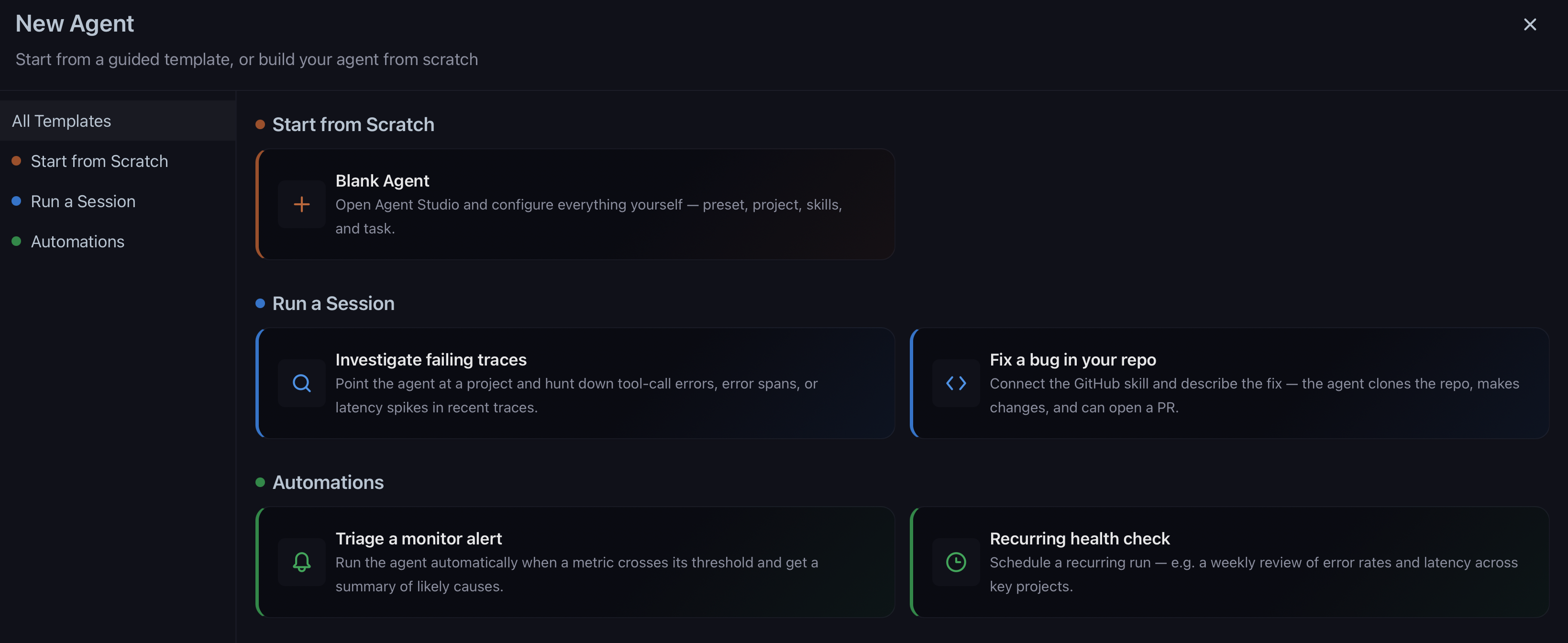
The gallery groups starting points by intent:| Section | Use for |
|---|---|
| Start from Scratch | Open Studio with an empty task—you choose preset, project, skills, and prompt |
| Run a Session | One-off investigations or repo fixes with a seeded prompt |
| Automations | Recurring health checks or metric-triggered triage |
Session vs automation
| Mode | Use for |
|---|---|
| Session | One-off work; follow the transcript and send follow-ups |
| Automation | Repeating task on a cron schedule or metric threshold |
Configure a run
Pick a preset (optional)
Choose a saved agent preset, or None to configure manually. Built-in Signal presets are not listed here—they are managed separately.
Select project
Traces and evals are read from this project for every run in the session or automation.
Attach skills and repo (when needed)
With None selected, add skills inline. With a preset, skills and repo come from the preset (edit the preset to change them).
Enter task prompt
Describe the investigation or output you need—for example, root-cause a tool failure or draft eval labels for faithfulness failures.
After you start
When a session starts, Studio closes and Agent Swarms opens the Agent List tab with the new run’s detail slide-over. The worker provisions a sandbox, clones the repo (if configured), loads skills, and pulls project context. From session detail you can:- Read the live transcript
- Send follow-ups to steer the run
- View traces for the sandbox run
- Reprovision a completed or stopped session to continue work
Outputs
| Output | When |
|---|---|
| Investigation markdown | Always possible |
| Eval labels, dataset rows | Task-dependent |
| Branch / PR | Preset or run includes repo write access |
Related docs
These pages sit under Managed Agents in the docs sidebar:- Agent Presets — Save and manage harness, sandbox, repo, and skills
- Agent Swarms — Swarm Manager and Agent List
- How agents work — Sandboxes, data access, credentials, and security boundaries
- Skills and permissions — Configure GitHub, Arize, Datadog, and custom skills; RBAC