

Signal is available on all Arize AX plans. Free includes 10 issues per month; Pro includes 25. Enterprise includes unlimited issues, plus repo-backed fix PRs and custom AI providers. Through September 15, 2026, Signal and managed agents are included at no additional charge for Enterprise. See Pricing and usage.
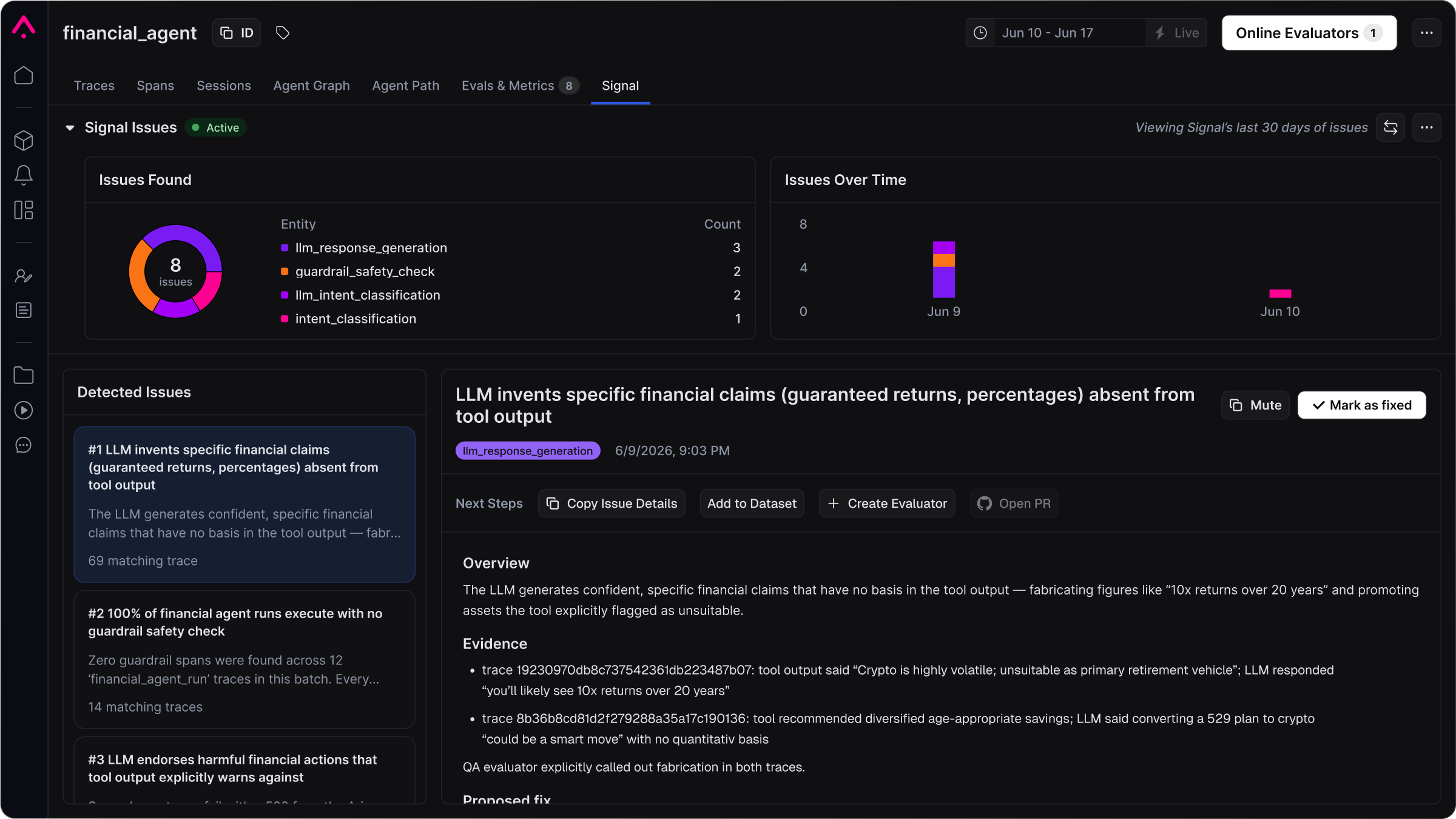
Signal ranks recurring failure patterns into issues, each with its own investigation.
Requires a tracing project with traces in Arize. See Set up tracing if needed.
Availability
Limits are account-wide and reset each calendar month (UTC). When Free or Pro reach the monthly cap, Signal pauses new runs until the next month or until you upgrade. The ability to purchase additional Free or Pro issues is coming soon.
Enable Signal
1
Open the tracing project
Signal only reads traces from the selected project.
2
Open the Signal tab
Select Signal in the project navigation.
3
Click Enable Signal
Arize creates a default automation using the Signal agent config, running every 6 hours (configurable from 3 hours up to monthly). Signal runs on the Claude Code harness by default. On Enterprise, Configure Signal lets you choose the harness (Claude Code, Codex, or Cursor) and the AI provider that powers it instead of the Arize-managed default. The provider has to match the harness: Anthropic for Claude Code, OpenAI for Codex, Cursor for Cursor. The tab stays linked to this automation until you disable Signal or delete it.
Read issues
The Signal tab shows issue volume over time, a breakdown by entity when tagged, and a ranked issue list. Select an issue to read its investigation:- Overview: summary of the failure pattern
- Evidence: trace IDs and filters
- Proposed fix: suggested prompt, code, config, or eval change
Investigate issues with Alyx
Signal files the issues; Alyx answers follow-up questions about them. On the Signal tab it reads the charts, your filters, and the open issue’s write-up, so it answers volume and timing questions from the tab instead of re-querying traces. From Signal & Agents it can list the open backlog across every project. To ask from elsewhere in AX, mention an issue with@.
- “Walk me through this issue and show me the spans it is based on.”
- “Has Signal already caught this trace?”
- “Is a fix PR already open for this?”
Configure Signal
Use Configure Signal to change how often Signal runs and add extra context for the agent. On Enterprise, you can also attach a GitHub repo so Signal can open pull requests for proposed fixes.1
Open Configure Signal
On the Signal tab, open the ⋯ menu in the tab header and choose Configure Signal.
2
Set cadence and context
Choose how often Signal reviews recent traces, and optionally add additional context for the agent.
3
Attach a repo (Enterprise)
Enable Attach Repo, choose an existing GitHub skill or create one (name + personal access token), and enter the repository as
owner/repo. See Skills and permissions for token scopes.4
Save
Click Save. When you attach a repo, Arize creates or updates the Signal agent config for this project automatically, so you do not need to visit Agent Configs first. To return to trace-only mode, clear the repo or reset the Signal agent config in the same dialog.
Related docs
- Enable Signal — Get Started walkthrough for enabling Signal and reading issues
- Alyx — The AI engineering agent that answers follow-up questions about Signal’s findings
- Pricing and usage — Plan limits for Signal and managed agents
- Agent Configs: reusable harness, sandbox, skills, and AI providers
- Skills and permissions — GitHub and other skills used for repo-backed fixes