Create evals through the UI
Create evals using Code
Evals & Tasks (UI)
1. Upload a CSV as a dataset
There are several ways to start an eval task — either on a project or a dataset. For this specific walkthrough, we can run evals on a dataset. Download this sample CSV and upload it as a dataset in the Prompt Playground.2. Set up a task in the playground
Load the dataset you created into prompt playground and enter the following prompt:Who invented {attributes.output.value}?
3. Create your first evaluator
Next, we will create an evaluator that will assess the outputs of our LLM.- Navigate to Add Evaluator and choose LLM-As-A-Judge
- From the evaluation templates choose Human vs AI
- Adjust the variables in the template to match the columns of this dataset
- Finish by creating the evaluator

4. Run the task and evaluator
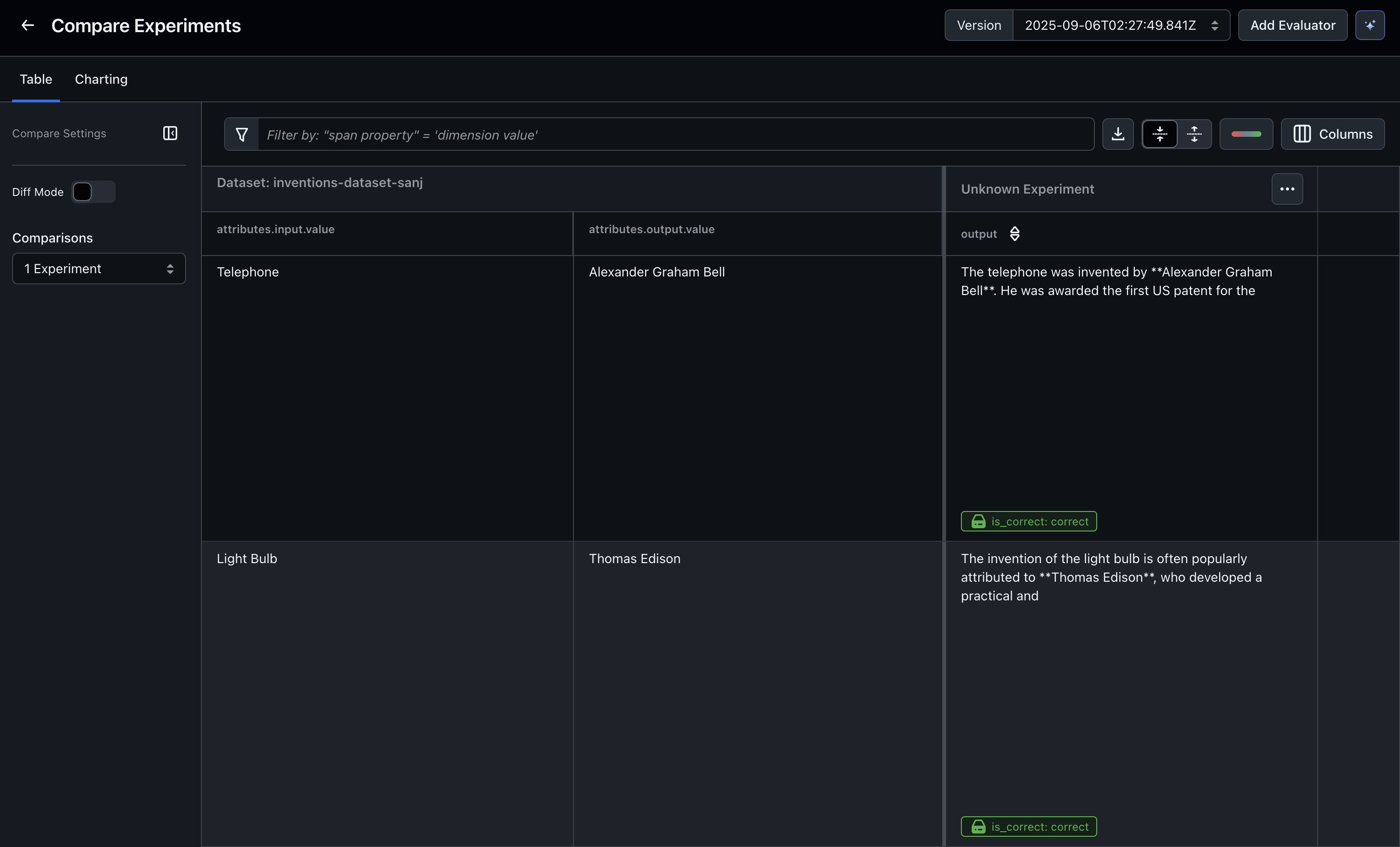
Finally, you can run the task in the playground. Navigate to the experiment to see the outputs and evaluation results.Evals & Tasks (Code)
1. Install dependencies & set your API Keys + Space ID

2. Create your dataset
Datasets are useful groupings of data points you want to use for test cases. You can create datasets in code, generate them automatically with Alyx, or import spans directly through the Arize AX UI. Here’s an example of creating them with code:3. Define a task
Define the LLM task to be tested against your dataset here. This could be structured data extraction, SQL generation, chatbot response generation, search, or any task of your choosing. The input is thedataset_row so you can access the variables in your dataset, and the output is a string.
Learn more about how to create a task for an experiment.
4. Define your first evaluators
An evaluator is any function that (1) takes the task output and (2) returns an assessment. This gives you tremendous flexibility to write your own LLM judge using a custom template, or use code-based evaluators. Here we will define a code-based evaluator. Phoenix Evals allow you to turn a function into an Evaluator using thecreate_evaluator decorator
5. Run the experiment
To run an experiment, you need to specify the space you are logging it to, the dataset_id, the task you would like to run, and the list of evaluators defined on the output. This also logs the traces to Arize AX so you can debug each run. You can specifydry_run=True , which does not log the result to Arize. You can also specify exit_on_error=True , which makes it easier to debug when an experiment doesn’t run correctly.
6. View the evaluator result in Arize AX
Navigate to the dataset in the UI and see the evaluator results in the experiment output table.