Using a coding agent? Paste this into your agent to set up tracing automatically:Learn more about agent-assisted setup → Agents can also use the Arize instrumentation skill so the agent knows exactly how to set up and configure tracing for your app.
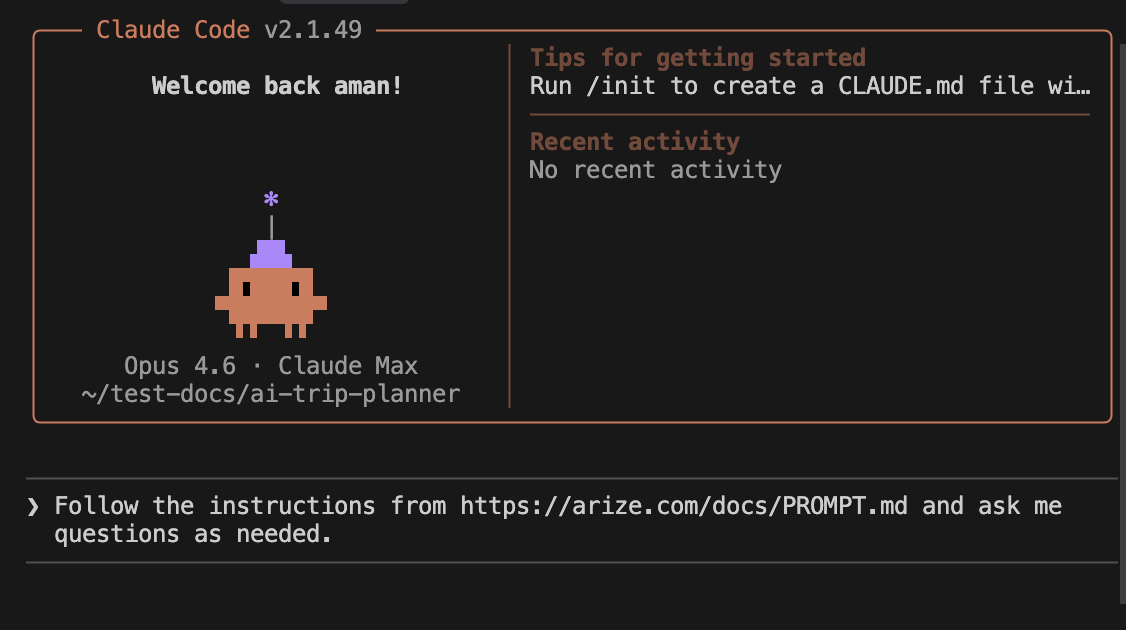
Agent-Assisted Setup (Recommended)

Step-by-Step Tracing Setup
End-to-End Example (Python)
End-to-End Example (JS / TS)
- Install the tracing packages
- Get your API keys & connect to Arize AX
- Add tracing to your application
- Run your application and start viewing traces
Step by Step
1. Install our tracing packages
Run the following commands below to install our open source tracing packages, which works on top of OpenTelemetry. This example below uses openai, and we support many LLM providers (see full list).- Python
- JS/TS
Using pip:Using conda:
2. Get your API keys
Go to your space settings in the left navigation, and create a key using the button below.
3. Add our tracing code
Arize AX is an OpenTelemetry collector, which means you can configure your tracer and span processor. For more OTEL configurability, see how to set your tracer for auto instrumentors. The package we are using is arize-otel, which is a lightweight convenience package to set up OpenTelemetry and send traces to Arize AX. Python and JS/TS examples are shown below. Endpoints: There are a couple different endpoints you can set with it comes to setting up yourTracerProvider:
- If you are located in the European Union, ensure to set your endpoint to Endpoint.ARIZE_EUROPE
- For custom endpoints, default to use is
GRPCSpanExporter. To useHTTPSpanExporterinstead, ensure to set endpoint to “https://my-custom-endpoint”.
Are you coding with Javascript instead of Python? See our detailed guide on auto-instrumentation or manual instrumentation with Javascript examples.
- Python - OpenAI
- JS/TS - OpenAI
- LlamaIndex 🦙
- LangChain 🦜🔗
- Groq
The following code snippet showcases how to automatically instrument your OpenAI application.Set OpenAI Key:To test, let’s send a chat request to OpenAI:Now start asking questions to your LLM app and watch the traces being collected by Arize.
4. Run your LLM application
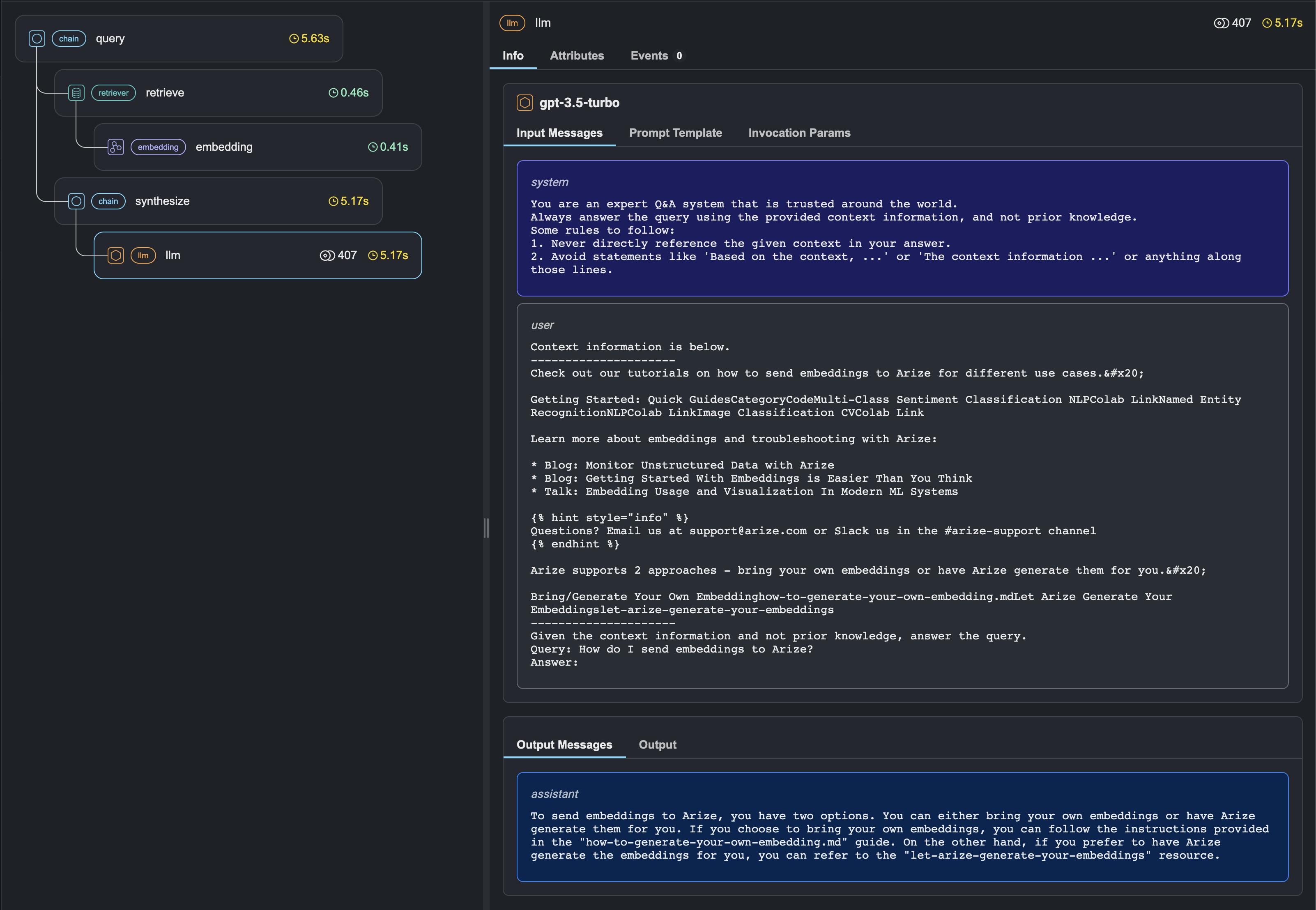
Once you’ve executed a sufficient number of queries (or chats) to your application, you can view the details on the LLM Tracing page.