

What can Alyx do?
Turn failures into evaluation coverage
“Investigate this project’s recurring errors and build an evaluation to catch one of the failure patterns.”Start with a project that has traces. Alyx finds relevant examples, inspects inputs, outputs, and tool calls, and groups related failures. It can then propose an evaluator and configure its evaluation task, including data sources and variable mappings. Result: a diagnosis backed by trace evidence and an evaluation you can reuse on incoming data. New to evaluations? Start with the AI agent evaluation handbook.
Alyx can create an eval for you directly from your traces so that you can start measuring what matters without any manual setup.
Compare prompts with evidence
“Using this dataset, create two prompt variants, attach a helpfulness evaluation, and compare their results.”Start with a dataset and a configured model integration for the experiment. Alyx prepares the playground, creates variants, runs experiments, and analyzes results. You can also ask it to generate synthetic examples, refine the prompt, or save a version to Prompt Hub. Result: tested alternatives and results that help you choose your next change.
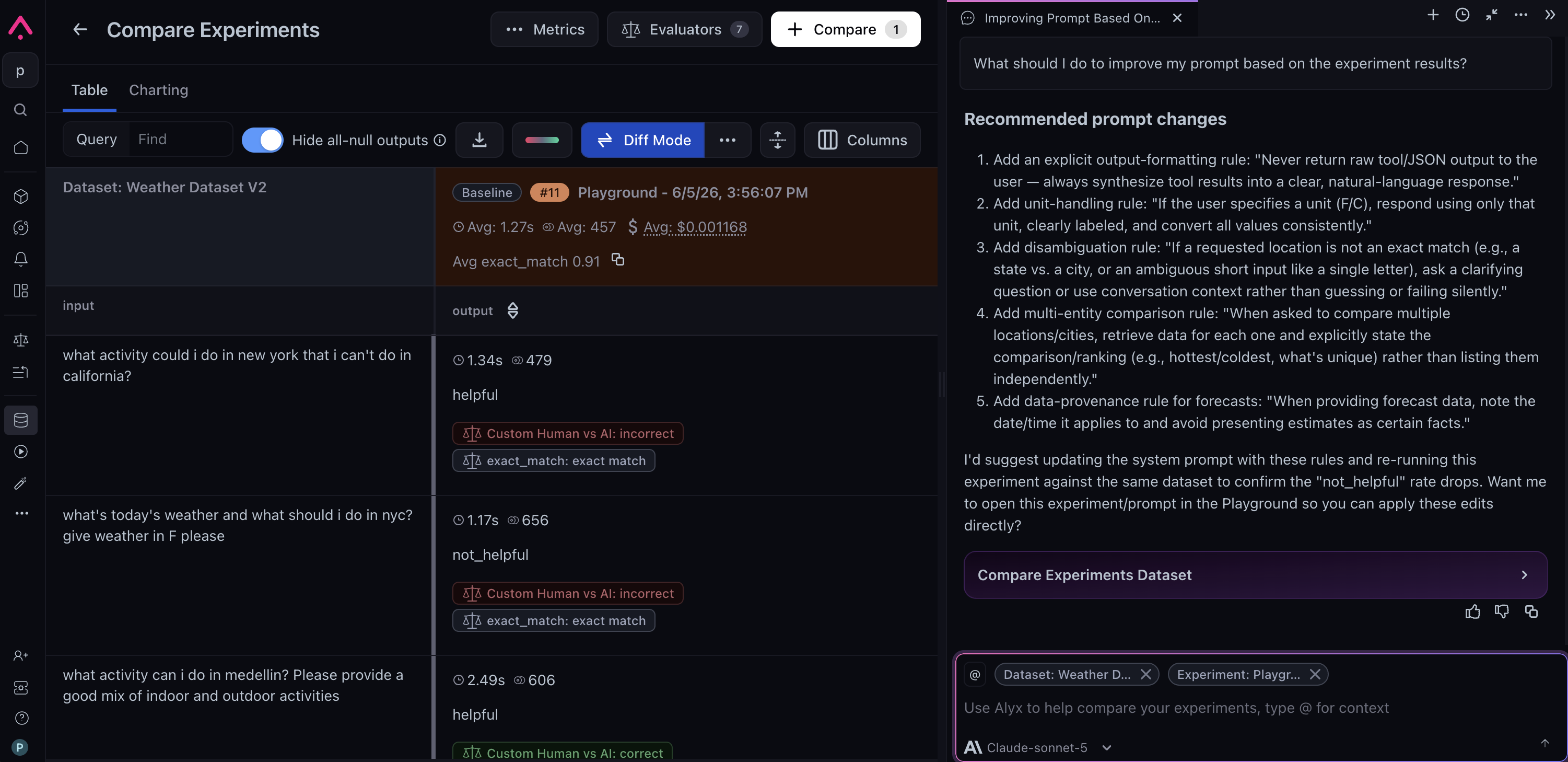
Alyx can help you iterate on improvements based on experiment results.
Build custom views for your application
“Create a trace view showing each tool call beside its response, latency, and evaluation scores.”Open a trace, session, or annotation-queue record and describe the layout you need. Alyx generates a custom view against your data. Review it and request refinements before accepting it. Use the view controls to save and organize supported views for reuse. Result: a layout tailored to your debugging or review task, without exporting data or building a separate interface. Learn more about custom views.
Align an evaluator with human feedback
“Help align this evaluator with the human annotations in my dataset.”Start with an evaluator and labeled examples. Alyx helps select the annotation column, configures an agreement check, runs experiments, and iterates on the evaluator template. If you need review data first, it can help create annotation configurations and labeling queues. Result: a revised evaluator and experiment results showing its agreement with your labels.
Explore all capabilities
Expand a category for supported actions and an example request. Some actions need additional context, a configured integration, or your acceptance before they run.Custom trace, session, and annotation-queue views
Custom trace, session, and annotation-queue views
Signal insights
Signal insights
Trace search and investigation
Trace search and investigation
Aggregations and custom metrics
Aggregations and custom metrics
Evaluators and human-label alignment
Evaluators and human-label alignment
Evaluation tasks
Evaluation tasks
Agent-as-a-judge evaluations
Agent-as-a-judge evaluations
Datasets
Datasets
Prompts and experiments
Prompts and experiments
Annotations and labeling queues
Annotations and labeling queues
Dashboards
Dashboards
Long-term memory
Alyx carries useful context from one conversation to the next, so you can continue an investigation or improvement project without re-explaining the background every time. Its long-term memory focuses on durable context that can make future work more relevant, including:- How you work: your role, preferred level of detail, terminology, and how you like results presented.
- Goals and progress: ongoing objectives, current blockers, decisions you have made, and important checkpoints.
- Project learnings: recurring failure patterns, non-obvious schema details, meaningful baselines, and which parts of an application matter most to your analysis.
- Asset learnings: the purpose of important prompts, datasets, evaluators, and experiments; relationships between those assets; and notable results that help measure progress.
- Conventions and corrections: team-specific workflows, naming patterns, and feedback about how Alyx should approach future work.
Memory-assisted workflows
- Continue a reliability goal: After working with Alyx to reduce agent errors, ask, “How are we looking today?” Alyx can connect the question to the goal, revisit the error signals you were tracking, and compare the latest results with prior checkpoints.
- Return to an investigation: If you found that an error spike came from test traffic, expected retries, or a particular deployment, Alyx can carry that discovery forward so the next investigation starts with the known context.
- Connect work across AX: Alyx can remember that an evaluator was created to track a goal, which dataset is your regression set, or why one prompt version was preferred, then use those relationships in later experiments and analyses.
- Keep your preferred workflow: If you prefer failures grouped by root cause, deployment, or customer impact, Alyx can use that framing in future conversations.
Add your own context
You do not have to wait for Alyx to infer everything. There are two ways to put context in front of it deliberately. Ask Alyx to remember something. Say it in the chat and Alyx keeps it:
“Remember that support-regression is our release-gating dataset.”
“In this project, ground truth lives in metadata.label, not in the span output.”
Details you state directly are stored as high-confidence entries, so Alyx recalls them precisely instead of re-deriving them. Corrections work the same way: tell Alyx what changed, such as “we dropped the semantic-similarity eval, it was too noisy,” and it replaces the stale entry rather than keeping both. Memory is written in the background after the turn finishes, so something you add now is in place for your next message and every conversation after it.
Set up your profile. For context you want to control yourself, open Settings from the menu in the top-right corner of the Alyx chat and fill in the Profile card:
- Name: What Alyx should call you.
- What best describes your work: Your role, which shapes how Alyx pitches its answers.
- Instructions for Alyx: Free-form context Alyx keeps in mind across chats, such as “I primarily code in Python (not a coding beginner)” or “group failures by root cause rather than by timestamp.”
Long-term memory FAQ
Who can see what Alyx remembers about me?
Who can see what Alyx remembers about me?
Does memory follow me between spaces?
Does memory follow me between spaces?
Does Alyx keep a transcript of our conversations?
Does Alyx keep a transcript of our conversations?
What does Alyx deliberately not remember?
What does Alyx deliberately not remember?
How do I remove or correct something Alyx remembers?
How do I remove or correct something Alyx remembers?
What if my profile and learned memory disagree?
What if my profile and learned memory disagree?
Is my memory sent to the model provider?
Is my memory sent to the model provider?
Experience awareness
Alyx adapts its help to your familiarity with each part of Arize AX. Based on your experience level, Alyx can be an onboarding buddy that teaches as it works or an advanced, focused agent that concentrates on completing your tasks. The experience is catered to you and treated separately by product area, so Alyx can move quickly when you are working with tracing while providing more guidance when you try evaluations or dashboards for the first time.- Evals and tasks: During onboarding, Alyx explains the difference between an evaluator and a task, then walks through fields such as query filters, variable mappings, classification choices, sampling, and run settings as it prepares the configuration. For an experienced user, it can apply the requested configuration directly and focus the response on the resulting evaluator, task, and any important caveats.
- Tracing: During onboarding, Alyx distinguishes traces, spans, and sessions, translates filters into plain language, and summarizes a pattern before showing examples. For an experienced user, it can move directly to multi-span filters, grouped aggregations, or root-cause analysis.
- Datasets and experiments: During onboarding, Alyx explains how reusable examples, prompts, and evaluators work together in a fair comparison. For an experienced user, it can run the requested comparison and concentrate on score changes, failures, token usage, and the next optimization.
- Dashboards and annotation workflows: During onboarding, Alyx explains metrics, dimensions, labels, and review queues as it builds the workflow. For an experienced user, it can work from precise widget, filter, rubric, and queue requirements.
Where to find Alyx
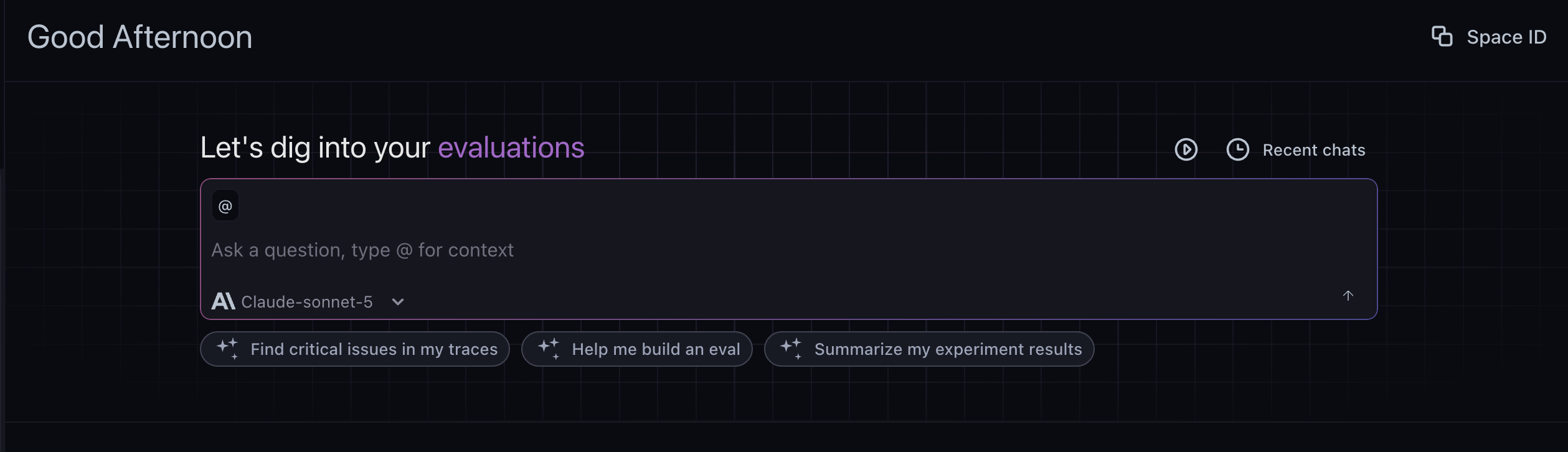
Alyx home: ask a question, use @ for context, and try suggested quickstarts
- Home view: the full-page experience on the Arize AX home page. Use it to start or resume a conversation, browse suggested workflows, and pick up a previous thread from your history. It is the place to begin broad or return to earlier work.
- Side chat: a panel you open over any page with the keyboard shortcut. It inherits the context of whatever you are viewing, such as a project, trace, dataset, or experiment, so you can ask about the data in front of you and let Alyx act on it without leaving the page. Dock it to the right as a resizable sidebar or detach it as a floating window. When you open it from a trace, it scopes to that trace and its spans.
Open Alyx
Use the keyboard shortcut to open or close the side chat from anywhere in the app.- macOS: Cmd+L
- Windows / Linux: Ctrl+L
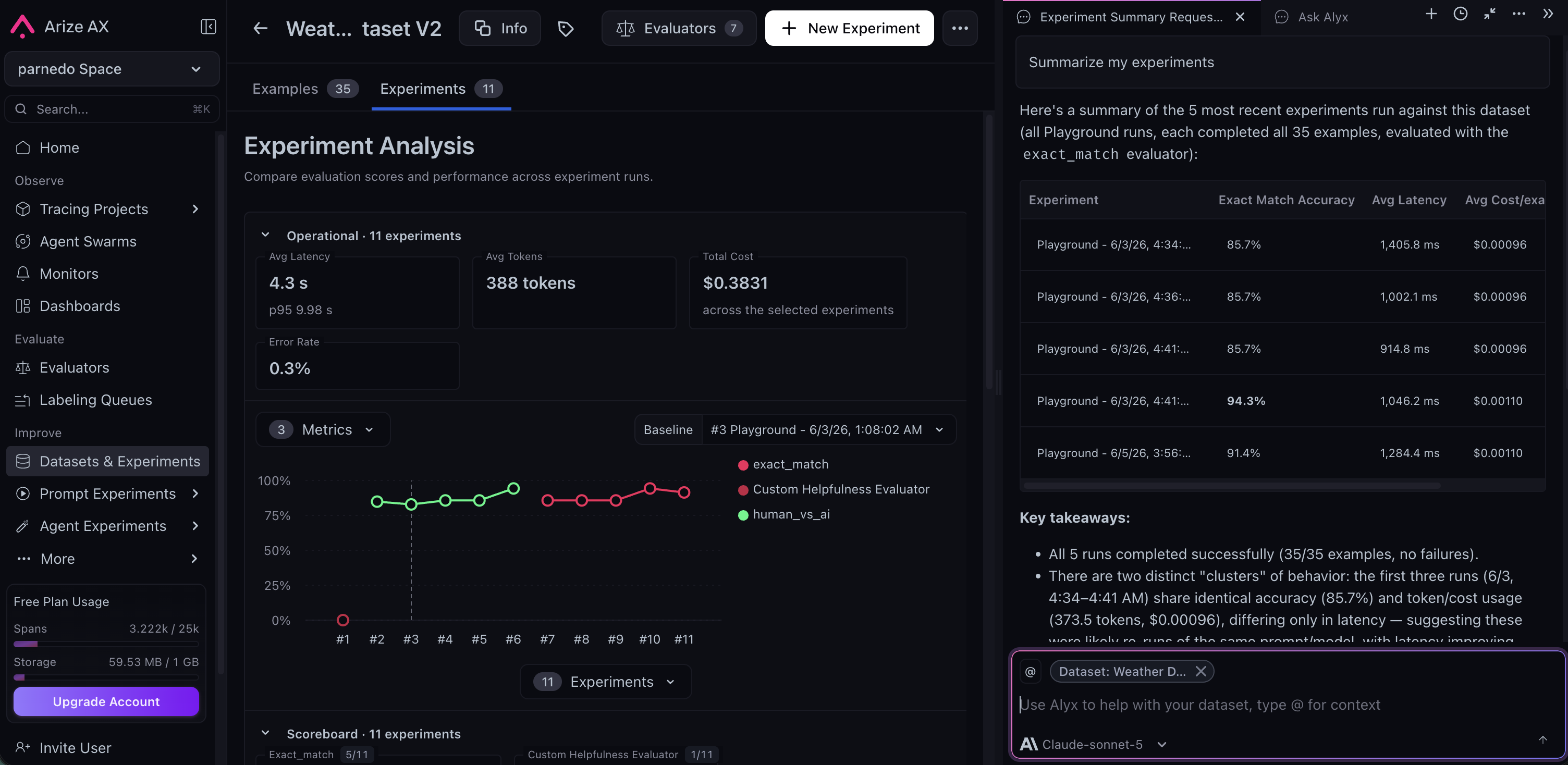
Alyx summarizing experiments.
More places to work with Alyx
- Sessions: inspect interactions across traces and generate custom session views.
- Labeling queues: propose queue configurations and generate custom views for reviewers.
- Dashboards: create, edit, or explain widgets with the open dashboard or widget attached as context.
- Signal: ask about a recorded issue with its context attached to your message.
Configure Alyx
Choose a model
Use the model selector in Alyx chat to choose an available Arize-managed model or a model from your own integration. Availability depends on your account and space configuration. Alyx filters for models with sufficient tool-use capability, so not every model configured for another AX feature appears in this selector.Use your own integrations with Alyx
You can run Alyx on your own LLM providers. Configure them in Settings, then Account Settings, then Integrations, and select a configured model from the model selector in the Alyx chat. For setup details see AI provider integrations. Available integrations include the following providers. Model eligibility also applies; configuring a provider does not make every model available to Alyx:- OpenAI
- Anthropic
- Gemini
- Azure OpenAI
- Vertex AI
- AWS Bedrock
- NVIDIA NIM
- Custom endpoints that expose an OpenAI-compatible API
Add and manage LLM integrations for Alyx in Settings
Add context to Alyx
Alyx works best when it knows exactly what you’re looking at. There are three ways to give it context:- Highlight: Select any text on the page, such as a span attribute, an error message, or a prompt snippet, then press Cmd+L on macOS or Ctrl+L on Windows and Linux. Alyx opens and adds the selected text to your message. If nothing is selected, the shortcut opens or closes Alyx.
- Mention: Type
@in the Alyx input to open a menu. Mention a dataset, experiment, project, or span, and Alyx receives the IDs so it can scope the conversation to that data. - Type it: Include context directly in your message. Reference a trace, dataset, or experiment by ID, or start with “Additional context:” and add what Alyx needs to know.
Settings
Open Settings from the menu in the top-right corner of the Alyx chat to personalize Alyx and configure approvals, your keyboard shortcut, documentation assistance, and tips. Keyboard shortcut: Change the shortcut used to open and close Alyx, as described in Open Alyx. Auto Accept: Alyx presents proposals for you to review before applying changes covered by the categories below. Turn on Auto Accept for a category to let Alyx apply those changes without a confirmation step. Each category is controlled independently:- Eval and task updates: Apply evaluator and task configuration changes automatically.
- Annotations: Apply annotation configs and span annotations automatically.
- Dataset creation and appends: Create datasets and append rows automatically.
- Prompt changes: Apply prompt edits in the playground automatically.
- Experiment runs: Start proposed experiment runs automatically.
- Name: What Alyx should call you.
- What best describes your work: Your role.
- Instructions for Alyx: Free-form context Alyx should keep in mind, such as “I primarily code in Python.”
Open Alyx Settings from the chat menu to configure your keyboard shortcut and Auto Accept settings
Chat experience
Edit and resend a message
Hover over a message you have sent and select Edit & resend, or click the message to edit it in place. Change the text and adjust the attached context, then press Enter to send or Escape to cancel. If that message previously produced results, such as a dataset, evaluation, or experiment, Alyx asks you to confirm before resending, because resending rewrites the conversation from that point on. Everything after the edited message is replaced, the turns above it stay in place, and the original turn is archived.Queue a message
If Alyx is still responding, you can line up your next message instead of waiting. Type it and send, and it appears as Queued beneath the conversation. Alyx sends it automatically once the current response finishes. Send it right away with Send Now, or remove it from the queue.Follow Alyx’s progress
For multi-step work, Alyx can display a plan and update it as it completes tasks. Supported Claude and GPT models also provide reasoning summaries in the thinking view.Return to a conversation
Open your conversation history from Alyx home to resume earlier work. The home view and side chat share the same conversation as you navigate between pages.Data privacy
Alyx sends requests to the model provider selected for your conversation. Arize-managed options include Azure OpenAI and Anthropic. When you use your own integration, your provider configuration and its data-handling terms apply. Data processing: Azure OpenAI and Anthropic act as data processors for prompts and outputs sent to and generated by Alyx, depending on which Arize-hosted model is used. Provider processing and retention depend on the service and applicable configuration; see the provider documentation linked below. Model training: Azure OpenAI and Anthropic describe their training and data-use commitments in the provider documentation linked below. Review the applicable terms for your selected integration. Microsoft and Azure OpenAI: The Azure OpenAI Service is fully controlled by Microsoft and hosted in Microsoft’s Azure environment. It does not interact with any other OpenAI-operated services such as ChatGPT or the OpenAI API. Anthropic and Claude: When Alyx uses Claude, Anthropic processes requests on Anthropic infrastructure under Anthropic’s security and data commitments for enterprise API use, separate from unrelated consumer products. Security and compliance: Azure OpenAI and Anthropic help Arize meet industry-standard security and compliance measures throughout the process. For more detail see Azure OpenAI Service data, privacy, and security in Microsoft’s documentation, Anthropic’s trust and privacy documentation, or contact support@arize.com.