

Using embeddings similarity search in production workflows
Key Concepts
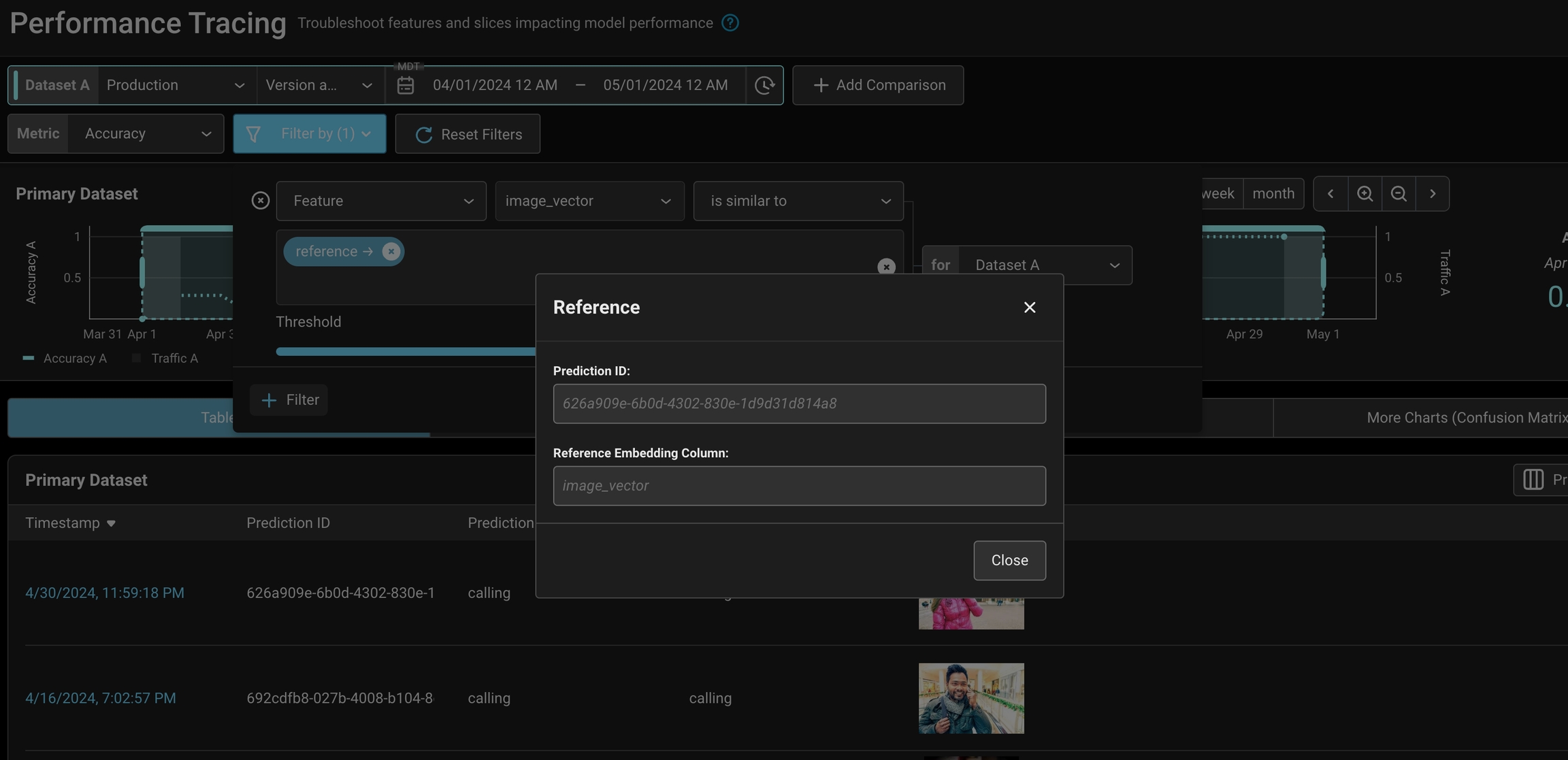
- Reference Embedding: The embedding vector that serves as the baseline for similarity comparisons. Select the column containing these vectors, representing the characteristics or features you are interested in matching.
- Search Embedding: The column containing embedding vectors of items to be compared against the reference embedding using cosine similarity.
- Threshold: A user-defined value that determines the minimum similarity score required for an item to be considered similar to the reference embeddings.
Performing Similarity Search
Selecting an Embedding Cell Directly- Hover over an embedding column in the table view and click the “Find Similar” button.
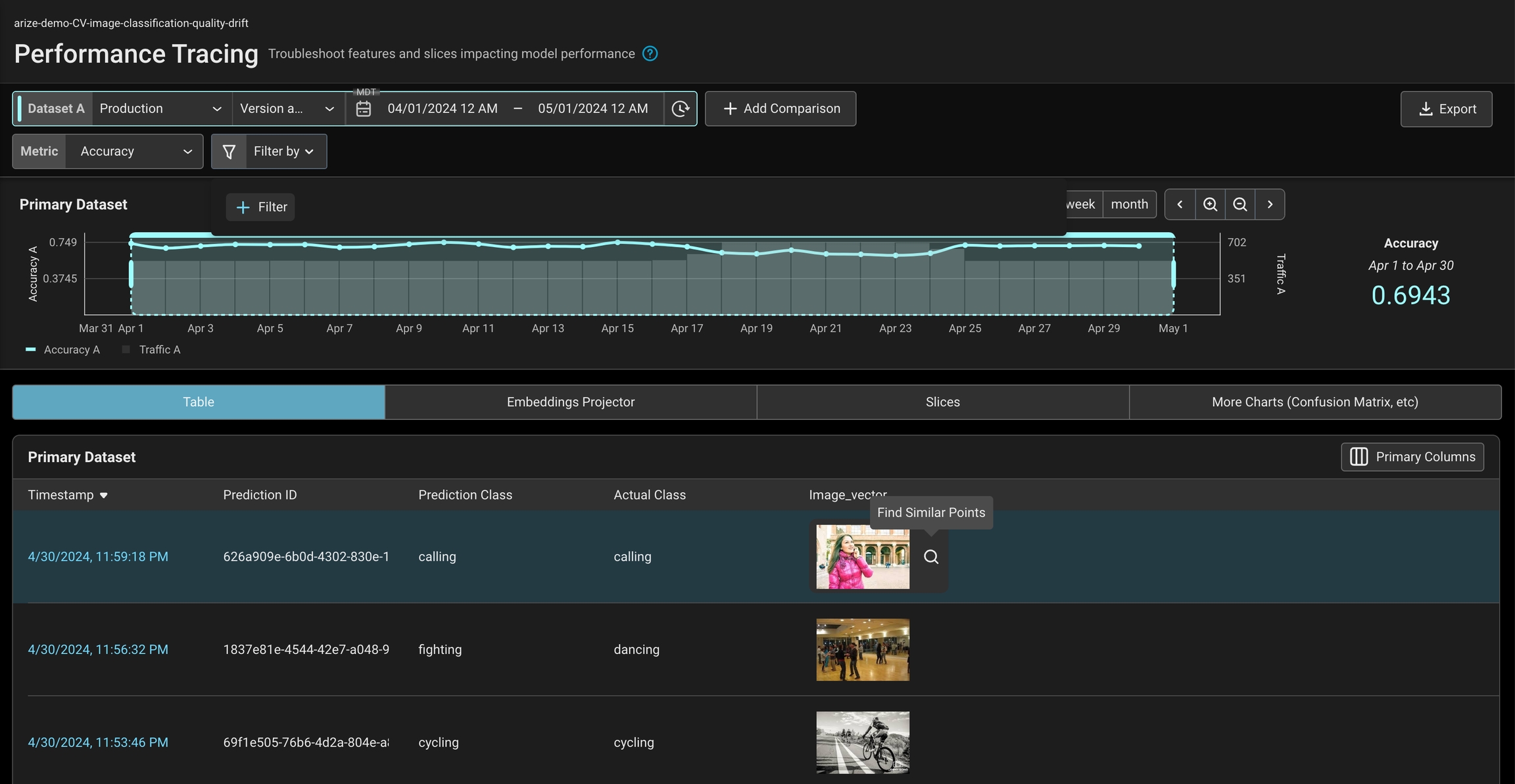
- Select points in UMAP and then press the “Find Similar” button.

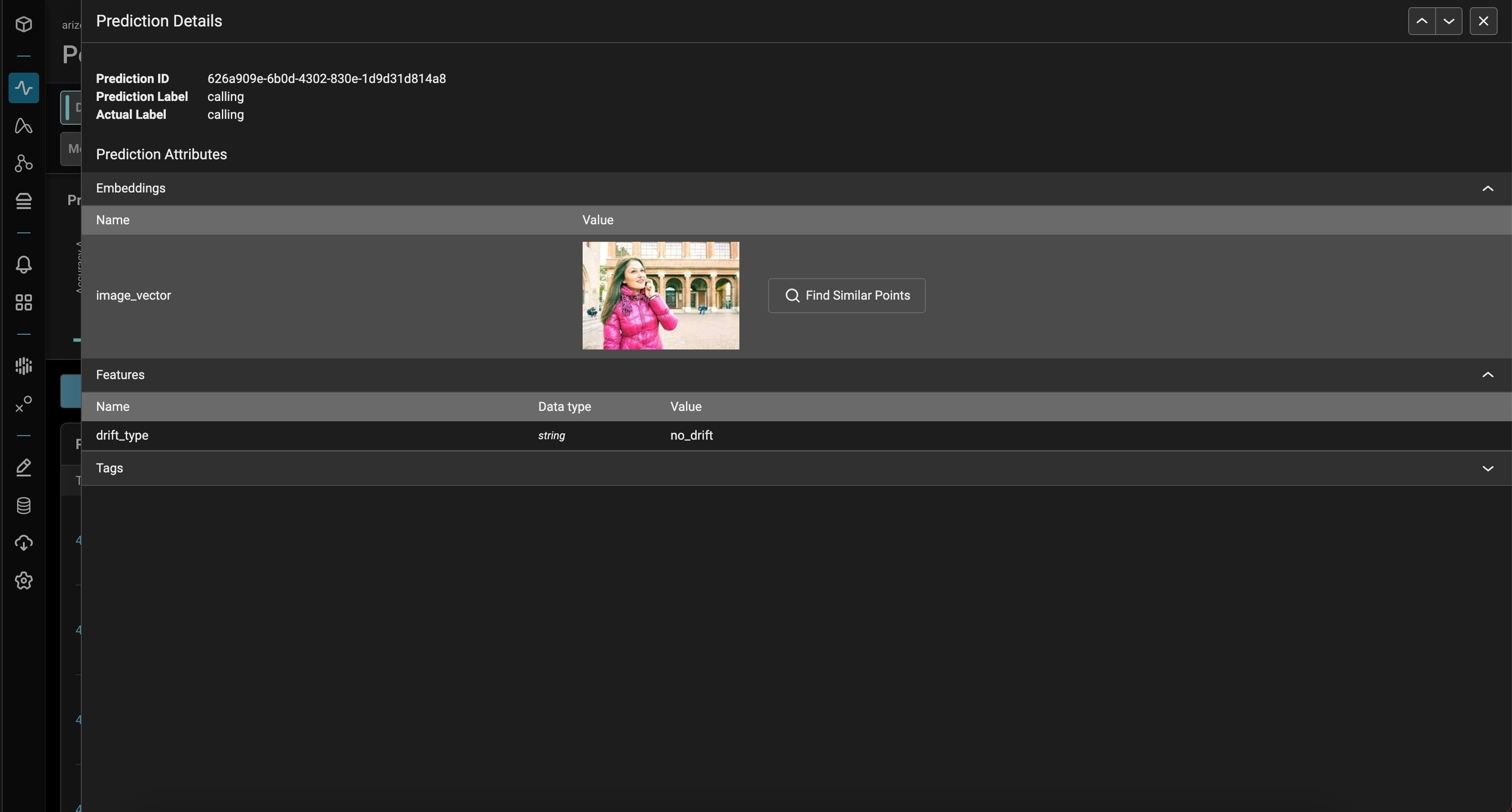
- Press the “Find Similar” button in dimension details after selecting an embedding or row.
Additional Features
Multiple Embeddings- Add multiple items from any of the entry points.
- When multiple embeddings are selected, their vectors will be averaged to form the reference embedding.
- Different columns can be used for the search and reference, but adding a new reference point from a different column will trigger a modal error.
- Similarity search is only supported in performance tracing and embedding views.
Programmatic Export
How it Works
- Define Reference Embeddings: Specify the embeddings you want to use as references. Ensure that all reference embeddings are in the same column.
- Set Search Parameters: Define the search embedding column and the similarity threshold.
- Execute the Search: Use the provided API to perform the similarity search and retrieve the results.