> ## Documentation Index
> Fetch the complete documentation index at: https://arize-ax.mintlify.site/docs/llms.txt
> Use this file to discover all available pages before exploring further.
# Human review
> Read real traces, label what went wrong, and turn those labels into the ground truth your evals are measured against.
You can't automate a check you haven't defined. Start by reading real traces in your [tracing project](/docs/ax/observe/tracing/view-and-manage-traces), spotting failure patterns, and grouping them into a taxonomy. The labels you collect become ground truth - and the taxonomy tells you which [evals are worth building](/docs/ax/evaluate/create-evaluators).
There are two ways to do this: **annotate traces, spans, sessions, datasets, or experiments yourself**, or route them to reviewers through a **[labeling queue](#labeling-queues)**.
 ## What is an annotation
An annotation is a human label on a trace, span, session, dataset example, or experiment result - a category (Correct / Incorrect), a numeric score, or freeform text. **Annotation configs** are reusable schemas for those labels, which is what keeps reviews consistent and comparable over time.
To add your first one, open **Annotation Configs** in the left nav and click **New Annotation Config**. You'll define:
* **Name:** a clear label for the annotation (e.g. "Correctness")
* **Type:** categorical, numeric score, or freeform text
* **Optimization direction:** Set to **maximize** if a higher score is better (e.g. accuracy), or **minimize** if a lower score is better (e.g. error rate). This determines how scores are color-coded in the UI.
* **Labels and score range:** e.g. Correct (1) / Incorrect (0)
## What is an annotation
An annotation is a human label on a trace, span, session, dataset example, or experiment result - a category (Correct / Incorrect), a numeric score, or freeform text. **Annotation configs** are reusable schemas for those labels, which is what keeps reviews consistent and comparable over time.
To add your first one, open **Annotation Configs** in the left nav and click **New Annotation Config**. You'll define:
* **Name:** a clear label for the annotation (e.g. "Correctness")
* **Type:** categorical, numeric score, or freeform text
* **Optimization direction:** Set to **maximize** if a higher score is better (e.g. accuracy), or **minimize** if a lower score is better (e.g. error rate). This determines how scores are color-coded in the UI.
* **Labels and score range:** e.g. Correct (1) / Incorrect (0)
 **Let Alyx set it up for you.** Press **Cmd+L** (macOS) or **Ctrl+L** (Windows/Linux) to open [Alyx](/docs/ax/alyx) and try: *"Create an annotation config called helpfulness with values helpful and not helpful"* or *"Annotate all the error spans"*
Annotate your data
The same annotation configs work across traces, spans, sessions, dataset examples, and experiment results. See the examples below for ways to annotate span data.
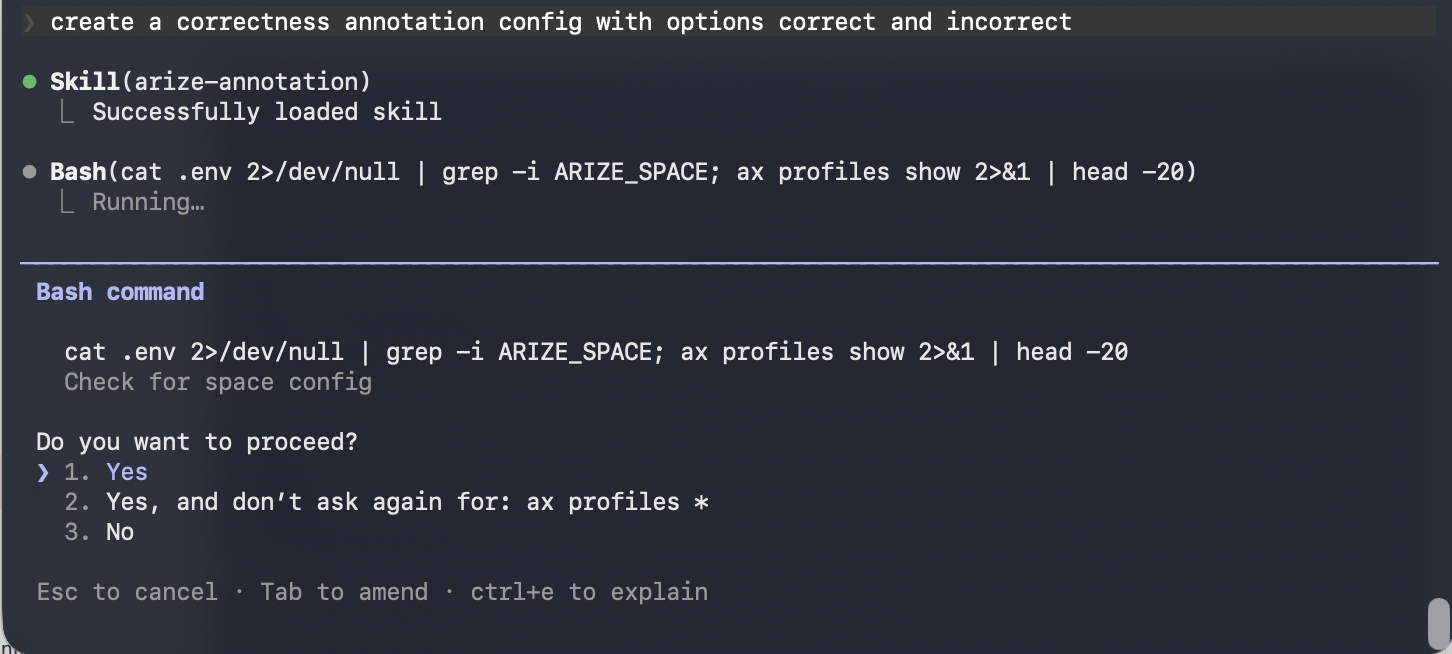
Use the [Arize skills plugin](/docs/ax/skills/overview) in your coding agent to manage annotation configs and apply annotations without leaving your editor. See the full [arize-annotation skill documentation](https://github.com/Arize-ai/arize-skills/blob/main/skills/arize-annotation/SKILL.md) for supported commands. Then ask your agent:
* "Create a categorical annotation config called Correctness with correct/incorrect labels"
* "List all annotation configs in my space"
* "Bulk annotate these spans with their correctness labels"
Use [Alyx](/docs/ax/alyx/meet-alyx) to help you find common error patterns across your traces. From there you can ask Alyx to annotate spans directly:
* "Show me the most common failure patterns in my traces"
* "Create an annotation config capturing good and bad responses"
* "Annotate spans where the output looks incorrect - a good response is factually accurate and directly answers the user's question, a bad response is vague, hallucinated, or off-topic"
 Open the [Spans](/docs/ax/observe/tracing/spans) view and review real outputs. Optionally use filters to focus on a specific span kind, time range, or status. To annotate a span, click the annotate button, and select your config.
 Apply annotations via the Python SDK to attach human feedback programmatically.
Note: Annotations can be applied on spans up to 31 days prior to the current day. To apply annotations beyond this lookback window, please reach out to [support@arize.com](mailto:support@arize.com)
These are our sample annotations to be logged:
```python theme={"theme":{"light":"github-light-default","dark":"github-dark-default"}}
import pandas as pd
# Sample annotation df with multiple annotations
annotations_dataframe = pd.DataFrame({
"context.span_id": [
"12345",
"67890",
],
# Categorical annotation: quality
"annotation.quality.label": ["good", "excellent"],
"annotation.quality.updated_by": ["annotator_1", "annotator_2"],
# Optional notes for each span
"annotation.notes": [
"User confirmed the summary was helpful.",
"Response was clear and accurate.",
],
})
```
```python Python SDK v8 theme={"theme":{"light":"github-light-default","dark":"github-dark-default"}}
from arize import ArizeClient
client = ArizeClient(api_key="your-arize-api-key")
response = client.spans.update_annotations(
space_id="your-arize-space-id",
project_name="your-project-name",
dataframe=annotations_dataframe,
validate=True,
)
```
```python Python SDK v7 theme={"theme":{"light":"github-light-default","dark":"github-dark-default"}}
from arize.pandas.logger import Client
arize_client = Client(
space_id="your-arize-space-id",
api_key="your-arize-api-key",
)
response = arize_client.log_annotations(
dataframe=annotations_dataframe,
project_name="your-project-name",
validate=True,
)
```
The dataframe flow above writes to spans. To annotate dataset examples or experiment runs, use the dedicated SDK methods, which upsert by annotation config name and accept up to 1000 records per request:
* **Python** - [`client.datasets.annotate_examples()`](/docs/api-clients/python/version-8/client-resources/datasets#annotate-dataset-examples) and [`client.experiments.annotate_runs()`](/docs/api-clients/python/version-8/client-resources/experiments#annotate-experiment-runs)
* **TypeScript** - [`annotateDatasetExamples()`](/docs/api-clients/typescript/version-1/client-resources/datasets) and [`annotateExperimentRuns()`](/docs/api-clients/typescript/version-1/client-resources/experiments)
The `annotations_dataframe` requires the following columns:
1. `context.span_id`: The unique identifier of the span to which the annotations should be attached.
2. Annotation columns use the pattern `annotation.NAME.SUFFIX`, where **NAME** is your annotation key (for example `quality`, `correctness`, or `sentiment`) using only letters, numbers, and underscores, and **SUFFIX** is one of the field types below:
* **SUFFIX** defines the type and metadata of the annotation. Valid suffixes are:
* `label`: For categorical annotations (for example, `_good_`, `_bad_`, `_spam_`). The value should be a string.
* `score`: For numerical annotations (for example, a rating from 1–5). The value should be numeric (int or float).
* You must provide at least one `annotation.NAME.label` or `annotation.NAME.score` column for each annotation you want to log.
* `updated_by` (Optional): A string indicating who made the annotation (for example, `user_id_123` or `annotator_team_a`). If not provided, the SDK automatically sets this to `SDK Logger`.
* `updated_at` (Optional): A timestamp indicating when the annotation was made, represented as milliseconds since the Unix epoch (integer). If not provided, the SDK automatically sets this to the current UTC time.
* `annotation.notes` (Optional): A column containing free-form text notes that apply to the entire span, not a specific annotation label or score. The value should be a string.
An example annotation data dictionary would look like:
```python theme={"theme":{"light":"github-light-default","dark":"github-dark-default"}}
# Assume TARGET_SPAN_ID holds the ID of the span you want to annotate
TARGET_SPAN_ID = "3461a49d-e0c3-469a-837b-d83f4a606543"
annotation_data = {
"context.span_id": [TARGET_SPAN_ID],
# Annotation 1: Categorical label, let SDK autogenerate updated_by/updated_at
"annotation.quality.label": ["good"],
# Annotation 2: Categorical label, manually set updated_by
"annotation.relevance.label": ["relevant"],
"annotation.relevance.updated_by": ["human_annotator_1"],
# Annotation 3: Numerical score, let SDK autogenerate updated_by/updated_at
"annotation.sentiment_score.score": [4.5],
# Optional notes for the span
"annotation.notes": ["User confirmed the summary was helpful."],
}
annotations_dataframe = pd.DataFrame(annotation_data)
```
Apply annotations via the Python SDK to attach human feedback programmatically.
Note: Annotations can be applied on spans up to 31 days prior to the current day. To apply annotations beyond this lookback window, please reach out to [support@arize.com](mailto:support@arize.com)
These are our sample annotations to be logged:
```python theme={"theme":{"light":"github-light-default","dark":"github-dark-default"}}
import pandas as pd
# Sample annotation df with multiple annotations
annotations_dataframe = pd.DataFrame({
"context.span_id": [
"12345",
"67890",
],
# Categorical annotation: quality
"annotation.quality.label": ["good", "excellent"],
"annotation.quality.updated_by": ["annotator_1", "annotator_2"],
# Optional notes for each span
"annotation.notes": [
"User confirmed the summary was helpful.",
"Response was clear and accurate.",
],
})
```
```python Python SDK v8 theme={"theme":{"light":"github-light-default","dark":"github-dark-default"}}
from arize import ArizeClient
client = ArizeClient(api_key="your-arize-api-key")
response = client.spans.update_annotations(
space_id="your-arize-space-id",
project_name="your-project-name",
dataframe=annotations_dataframe,
validate=True,
)
```
```python Python SDK v7 theme={"theme":{"light":"github-light-default","dark":"github-dark-default"}}
from arize.pandas.logger import Client
arize_client = Client(
space_id="your-arize-space-id",
api_key="your-arize-api-key",
)
response = arize_client.log_annotations(
dataframe=annotations_dataframe,
project_name="your-project-name",
validate=True,
)
```
The dataframe flow above writes to spans. To annotate dataset examples or experiment runs, use the dedicated SDK methods, which upsert by annotation config name and accept up to 1000 records per request:
* **Python** - [`client.datasets.annotate_examples()`](/docs/api-clients/python/version-8/client-resources/datasets#annotate-dataset-examples) and [`client.experiments.annotate_runs()`](/docs/api-clients/python/version-8/client-resources/experiments#annotate-experiment-runs)
* **TypeScript** - [`annotateDatasetExamples()`](/docs/api-clients/typescript/version-1/client-resources/datasets) and [`annotateExperimentRuns()`](/docs/api-clients/typescript/version-1/client-resources/experiments)
The `annotations_dataframe` requires the following columns:
1. `context.span_id`: The unique identifier of the span to which the annotations should be attached.
2. Annotation columns use the pattern `annotation.NAME.SUFFIX`, where **NAME** is your annotation key (for example `quality`, `correctness`, or `sentiment`) using only letters, numbers, and underscores, and **SUFFIX** is one of the field types below:
* **SUFFIX** defines the type and metadata of the annotation. Valid suffixes are:
* `label`: For categorical annotations (for example, `_good_`, `_bad_`, `_spam_`). The value should be a string.
* `score`: For numerical annotations (for example, a rating from 1–5). The value should be numeric (int or float).
* You must provide at least one `annotation.NAME.label` or `annotation.NAME.score` column for each annotation you want to log.
* `updated_by` (Optional): A string indicating who made the annotation (for example, `user_id_123` or `annotator_team_a`). If not provided, the SDK automatically sets this to `SDK Logger`.
* `updated_at` (Optional): A timestamp indicating when the annotation was made, represented as milliseconds since the Unix epoch (integer). If not provided, the SDK automatically sets this to the current UTC time.
* `annotation.notes` (Optional): A column containing free-form text notes that apply to the entire span, not a specific annotation label or score. The value should be a string.
An example annotation data dictionary would look like:
```python theme={"theme":{"light":"github-light-default","dark":"github-dark-default"}}
# Assume TARGET_SPAN_ID holds the ID of the span you want to annotate
TARGET_SPAN_ID = "3461a49d-e0c3-469a-837b-d83f4a606543"
annotation_data = {
"context.span_id": [TARGET_SPAN_ID],
# Annotation 1: Categorical label, let SDK autogenerate updated_by/updated_at
"annotation.quality.label": ["good"],
# Annotation 2: Categorical label, manually set updated_by
"annotation.relevance.label": ["relevant"],
"annotation.relevance.updated_by": ["human_annotator_1"],
# Annotation 3: Numerical score, let SDK autogenerate updated_by/updated_at
"annotation.sentiment_score.score": [4.5],
# Optional notes for the span
"annotation.notes": ["User confirmed the summary was helpful."],
}
annotations_dataframe = pd.DataFrame(annotation_data)
```
Labeling queues
Labeling queues are the other way to do human review: reach for one when a subject matter expert or third party should label spans without seeing the full traces view. Reviewers get a focused interface with only what they need to annotate, and the labeled examples become the ground truth you validate evals against.
Ask Alyx to create a labeling queue, send data to it, and optionally annotate data. For example:
* "Send spans where latency is over 5 seconds to my Slow Response labeling queue"
* "Send spans where hallucination eval scored 0 to the Hallucination Review queue"
 You can create a labeling queue from the traces or spans table, from within an individual span, or directly from **Labeling Queues** in the left nav. In all cases you define review instructions, select annotation configs, and assign team members.


 ### Reassign records
After records have been assigned, users with queue update access can change a record's assignee from the record's assignee selector. Reassign records to balance review workloads or route work to another annotator when the current annotator is unavailable.
### Build a ground truth dataset
A ground truth dataset is a curated set of labeled examples that captures the range of behaviors your system should and should not produce. It gives you a stable benchmark for validating automated evaluators and a reusable dataset to run experiments against as your prompts and models evolve.
Ask Alyx to create a dataset from spans of interest, append spans to an existing dataset, or suggest examples that cover edge cases for your rubric.
Example prompts:
* "Create a dataset from the spans I filtered in this trace view and include inputs and outputs"
* "Append these high-error spans to my regression benchmark dataset"
* "Suggest 20 diverse examples for a golden dataset based on my last week's traces"
### Reassign records
After records have been assigned, users with queue update access can change a record's assignee from the record's assignee selector. Reassign records to balance review workloads or route work to another annotator when the current annotator is unavailable.
### Build a ground truth dataset
A ground truth dataset is a curated set of labeled examples that captures the range of behaviors your system should and should not produce. It gives you a stable benchmark for validating automated evaluators and a reusable dataset to run experiments against as your prompts and models evolve.
Ask Alyx to create a dataset from spans of interest, append spans to an existing dataset, or suggest examples that cover edge cases for your rubric.
Example prompts:
* "Create a dataset from the spans I filtered in this trace view and include inputs and outputs"
* "Append these high-error spans to my regression benchmark dataset"
* "Suggest 20 diverse examples for a golden dataset based on my last week's traces"
 To build one, filter or search your spans in Tracing to find representative examples. Select rows and use Add to Dataset to create a new dataset or append to an existing one - span fields map to columns you can edit. Open the dataset from the left nav to review rows, add reference output columns, and version the dataset as labels stabilize.

 ## Further reading
* [Hamel Husain: Why is "error analysis" so important in LLM evals?](https://hamel.dev/blog/posts/evals-faq/#q-why-is-error-analysis-so-important-in-llm-evals-and-how-is-it-performed)
## Further reading
* [Hamel Husain: Why is "error analysis" so important in LLM evals?](https://hamel.dev/blog/posts/evals-faq/#q-why-is-error-analysis-so-important-in-llm-evals-and-how-is-it-performed)