> ## Documentation Index
> Fetch the complete documentation index at: https://arize-ax.mintlify.site/docs/llms.txt
> Use this file to discover all available pages before exploring further.
# LLM-as-a-judge
> Judge LLM outputs using LLMs
LLM-as-a-Judge is an evaluation approach that uses an LLM to assess the quality of another model's outputs. LLM evaluation is extremely flexible, because you can specify the rules and criteria in mostly plain language, similar to how you would ask human evaluators to grade your responses.
You can run thousands of evaluations across curated datasets without the need for human intervention. This creates a scalable form of evaluation using only scoring or classification prompts to measure performance.
Arize AX uses the [Phoenix Evals](http://arize.com/docs/phoenix/evaluation) library which is designed for simple, fast, and accurate LLM-based evaluations.
LLM evaluators are saved to the Eval Hub, where they are versioned and reused across tasks. See [Where evaluators live](/docs/ax/evaluate/create-evaluators#evaluator-hub).
 ## What to evaluate
Start where problematic traces cluster: repeated confusion or dissatisfaction in user messages is a good cue to build a **user frustration** eval and measure how often it fires. Your eval input can be any mix of the agent's inputs, outputs, metadata, and prompt variables, pulled from whole traces or from the specific spans that show the behavior you care about.
## What to evaluate
Start where problematic traces cluster: repeated confusion or dissatisfaction in user messages is a good cue to build a **user frustration** eval and measure how often it fires. Your eval input can be any mix of the agent's inputs, outputs, metadata, and prompt variables, pulled from whole traces or from the specific spans that show the behavior you care about.
Arize eval templates
If you don't want to start from scratch, Arize has predefined evaluation templates. These prompts are tested against benchmarked datasets.
These are built into [Phoenix Evals](https://arize.com/docs/phoenix/evaluation/pre-built-metrics) and are an easy way to get reliable evals up and running fast. You can access these templates directly when creating an evaluation in the Arize AX UI, or use them programmatically in code.
## Custom eval templates
Custom evaluation criteria and prompt templates let you measure what actually matters for your agent - going beyond what generic templates can assess. For example, you might create a custom eval to check for regulatory compliance, tone consistency, or task completion accuracy.
In the guide below, we walk through how to build three types of custom LLM-as-a-Judge evaluators:
* **Categorical Classification Evaluator** – for labelling outputs (ex: “Compliant” vs. “Non-compliant”).
* **Numeric Classification Evaluator** – for scoring responses (ex: rating helpfulness from 1-10).
* **Fully Custom LLM Evaluator** – for more complex evaluations such as multi-step reasoning or domain-specific accuracy.
Set up an [AI provider integration](/docs/ax/security-and-settings/integrations-playground/overview), write your eval template, map variables to your data, and save it to the Eval Hub. For when to use span, trace, or session scope, see [Eval scope](/docs/ax/evaluate/create-evaluators#scope).
You can create an LLM-as-a-judge directly in the UI, or have Alyx or Arize Skills do it for you.
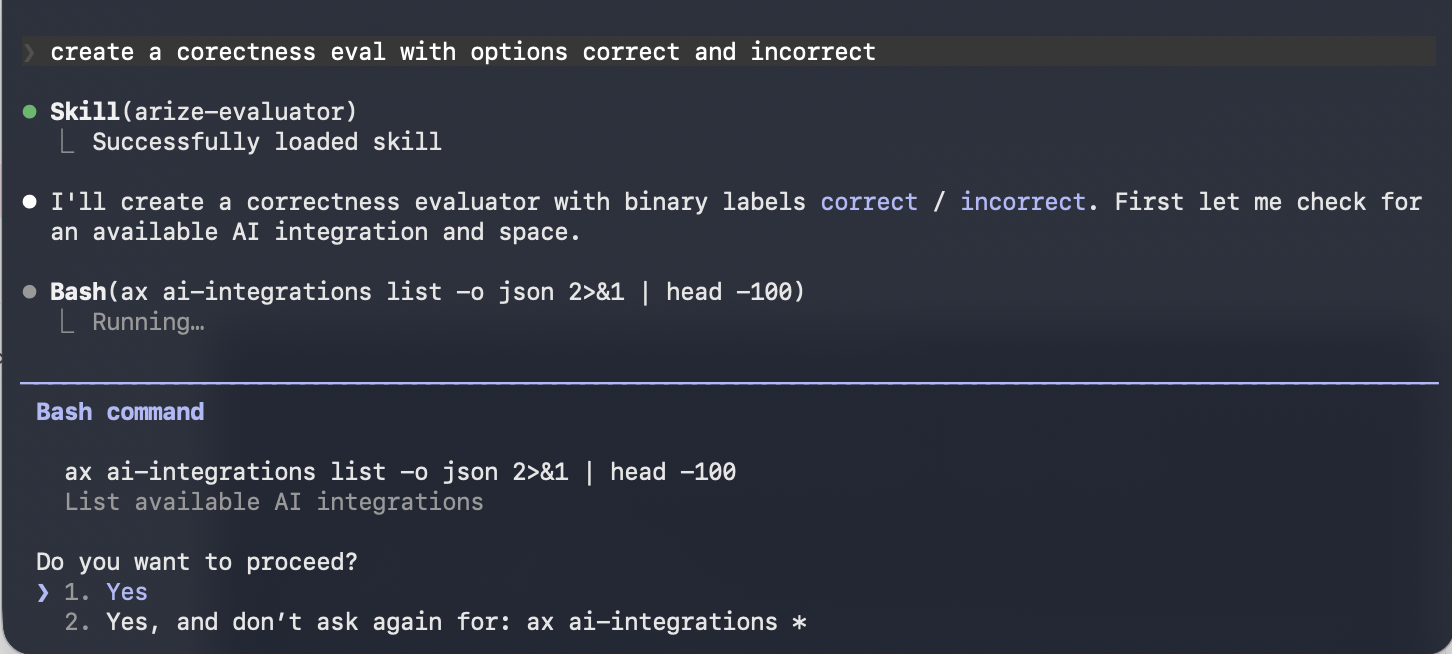
Use the [Arize skills plugin](/docs/ax/skills/overview) in your coding agent and the [arize-evaluator skill](https://github.com/Arize-ai/arize-skills/blob/main/skills/arize-evaluator/SKILL.md) to create evaluators via the `ax` CLI without leaving your editor. See the skill doc for supported commands. Then ask your agent:
* "Create a hallucination evaluator for my project"
* "Create an evaluator from blank with correct/incorrect labels"
* "Update the prompt on my correctness evaluator"
 Describe what you want to measure in plain language and Alyx will write the evaluator prompt for you, generate the labels and score mapping, and save it to the Eval Hub.
* "Create an evaluator that checks if customer support responses are empathetic and provide actionable next steps"
* "Write a hallucination evaluator for my RAG pipeline"
* "Create a correctness evaluator for my project"
Describe what you want to measure in plain language and Alyx will write the evaluator prompt for you, generate the labels and score mapping, and save it to the Eval Hub.
* "Create an evaluator that checks if customer support responses are empathetic and provide actionable next steps"
* "Write a hallucination evaluator for my RAG pipeline"
* "Create a correctness evaluator for my project"

From a trace or span
In the tracing UI, open a trace and use **Add Trace Eval** in the trace header to score the full trace, or select a span and use **Add Span Eval** in the span details panel for span-level judges.
When you are reviewing a trace, you can also open the evaluator template picker directly from the trace slideover to start a pre-built evaluator with the current trace context. You can create and manage the saved evaluator later from the Eval Hub.

Use a pre-built template
**Use a pre-built template** if a generic quality dimension covers your needs. Arize AX includes tested templates for common scenarios:
| Template | What it measures |
| ---------------- | ------------------------------------------------------------- |
| Hallucination | Outputs containing information not supported by the reference |
| Relevance | Whether responses address the input question |
| Toxicity | Harmful or inappropriate content |
| Helpfulness | How useful the response is to the user |
| Q\&A Correctness | Answer accuracy given reference documents |
| Summarization | Whether summaries capture the source material |
| User Frustration | Signs of frustration in conversations |
| Code Generation | Code correctness and readability |
| SQL Generation | SQL query correctness |
| Tool Calling | Function call accuracy and parameter extraction |
These templates are built into [Phoenix Evals](https://arize.com/docs/phoenix) and tested against benchmarked datasets. You can access them directly in the Arize AX UI when creating an evaluation, or use them programmatically in code.
1. Navigate to **New Eval Task** and select **LLM-as-a-Judge**
2. Click **Add Evaluator** and select a template
3. Set the scope - span, trace, or session
4. Configure your judge model and AI provider (use a different model than the one you're evaluating)
5. Map your trace or dataset attributes to the template variables
6. Click **Create**


Create from blank
**Create from blank** if your agent has specific criteria that generic templates can't capture.
1. Navigate to **New Eval Task** and select **LLM-as-a-Judge**
2. Click **Add Evaluator**, then **Create From Blank**
3. Name the evaluator and write a **prompt template**; see below for what makes a successful prompt template.
4. Define **output labels** (e.g. correct / incorrect) and **scores**
5. Configure the **judge model** and save

Writing a prompt template
A successful prompt template has four elements:
Define the judge's role
Open by defining the judge's role. Skip framing like "you are an expert evaluator", which rarely helps and sometimes makes results worse. Give it context instead: what system it is evaluating, what domain that system operates in, and what its task is. *"You are identifying issues with the relevance of an agent's responses so we can improve the experience for our users"* covers all three.
Explicit criteria
Avoid ambiguous or aspirational instructions like "a good response" or "a helpful answer". Focus on explicit instructions: what specific elements of a response would make it helpful? For example, for a financial agent, one criterion might be "Contains a specific buy/sell/hold recommendation", or for a customer service agent it might be "mentions specific actions to take in the UI to resolve the issue".
Also include criteria for failure: what would make the response **not helpful**? This is often drawn from inspecting traces.
Avoid over-specifying. Modern LLMs follow instructions closely, so a long list of rigid rules constrains the judge in ways you never intended. "Must contain a specific buy/sell/hold recommendation" is far stricter than "consider whether the response provides an appropriate next step", especially when the judge already knows it is evaluating a financial system.
Include labeled data
Include variable names that will be expanded at runtime into the inputs and outputs of the template, e.g. `{input}` and `{output}`. Surround these variables with clear labels to the LLM so that it understands where your instructions end and inputs and outputs begin and end. XML tags are a clear way to mark where blocks begin and end:
```
{input}
{output}
```
Don't specify the output format
Leave labels and response format out of your prompt. You define the possible responses as the evaluator's **Choices** in the UI, and AX turns them into a single tool the model must call. Models without tool calling get those instructions appended to the system prompt instead. Either way, AX handles the output spec and parsing.
## Run it over your data
An evaluator on its own doesn't score anything until you attach it to a task. See [Run evals on your data](/docs/ax/evaluate/run-evals) for online and offline tasks, sampling, and cadence.