> ## Documentation Index
> Fetch the complete documentation index at: https://arize-ax.mintlify.site/docs/llms.txt
> Use this file to discover all available pages before exploring further.
# Align evals to human feedback
> Validate evals against human labels before relying on them at scale.
export const AskAlyx = ({children}) => {
const gradientId = `askAlyxGradient-${Math.random().toString(36).slice(2)}`;
return ;
};
## Your evals are only as good as your criteria
Automated evals are only as good as what they measure. Before writing criteria, review real interactions and understand how a human would judge them - then build evals that reflect that standard.

## Start from human labels
Use [Human review](/docs/ax/evaluate/human-review) to define annotation configs, review traces or dataset rows, and build a ground truth set that reflects your rubric. These labels become the ground truth reference you compare eval scores against.
## Measure agreement
On a fixed sample of examples (typically 50 to a few hundred, covering edge cases), run your evaluator and compare its labels to your human annotations. Check accuracy, systematic bias, and per-label precision and recall. Follow the workflow below to run this loop and iterate until you hit a target threshold.
**Ask Alyx** to align an evaluator to your human annotations for you -- it attaches your labeled dataset, builds a scoring evaluator, runs the comparison loop, and stops once agreement lands in the ideal 75-85% range, then saves the aligned evaluator as a new version.
### Workflow
Use the [**Arize skills plugin**](/docs/ax/skills/overview) with the [**arize-align-evaluator**](https://github.com/Arize-ai/arize-skills/pull/45) skill in your coding agent. It walks you through aligning **LLM-as-a-judge** evaluators to human ground truth by composing **ax** CLI steps into a loop: run the evaluator, compare its labels to human judgments, measure agreement (accuracy, confusion matrix, per-label precision and recall), diagnose systematic bias, revise the evaluator template, and repeat until you hit a target threshold.
Get started with a prompt like:
* "Use the arize-align-evaluator skill to align my correctness evaluator against human annotations on my customer-support project."

1. Annotate dataset
2. Configure your [evals](/docs/ax/evaluate/create-evaluators) with the same choices as your annotation config
3. Navigate to the [Prompt Playground](/docs/ax/prompts/prompt-playground) and select your dataset and evaluator
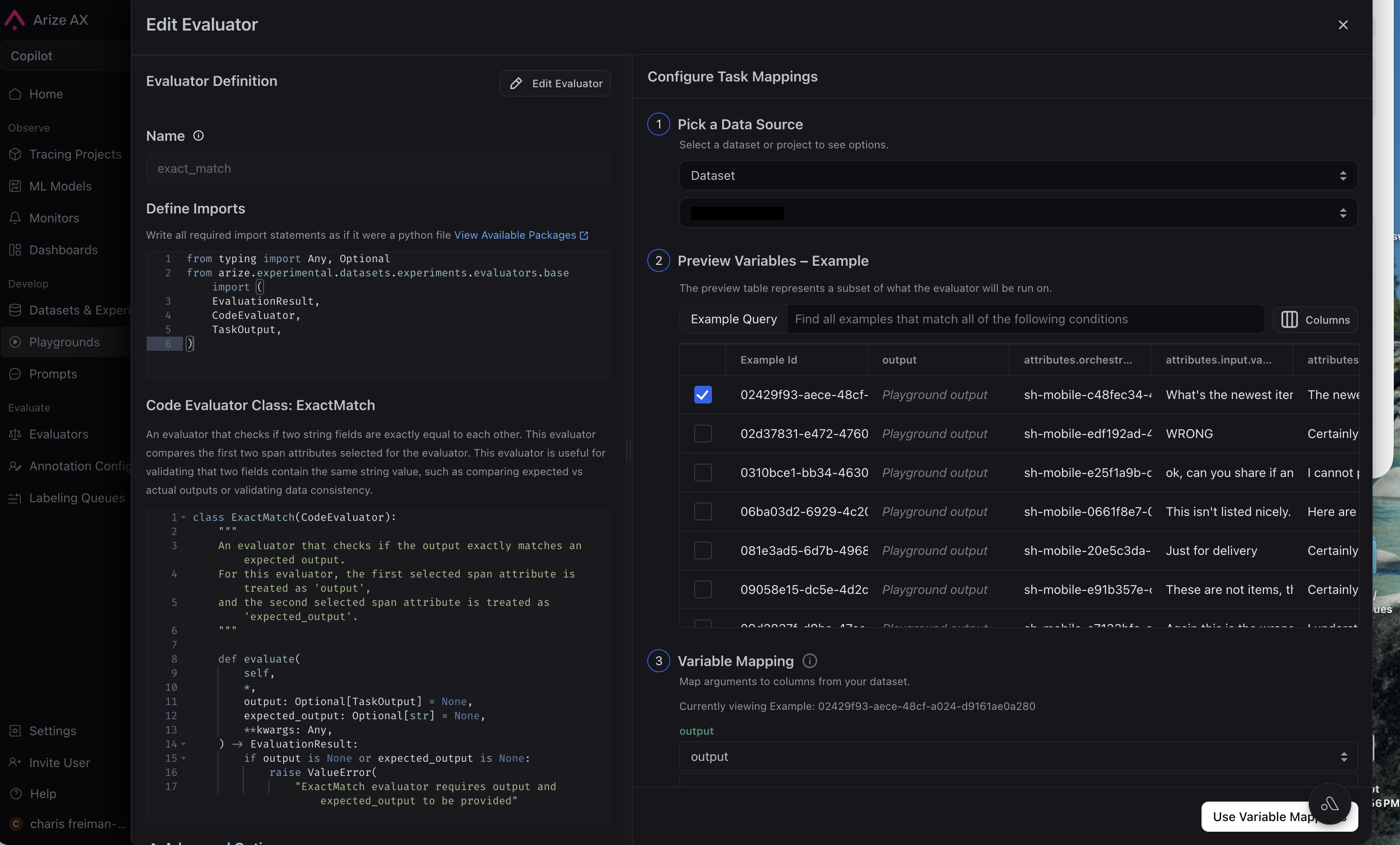
4. Set up a second eval to compare results, either the Exact Match code eval or the Human vs AI eval. You will be comparing the experiment output to the ground truth annotation column in your dataset
5. Run the experiment
6. Refine evaluator prompt
Use a second LLM-as-judge or exact match code eval to compare the output your primary eval produces with the ground truth column from your dataset.

You can also compute alignment using an exact match code eval.


## Common issues
* **High human disagreement:** if annotators disagree with each other, evals cannot align to a single standard until the rubric is clarified
* **Small calibration sets:** a handful of rows can miss long-tail failures. Aim for at least 50 to 100 labeled examples before trusting metrics or changing production monitors
* **Criteria mismatch:** your evals may be scoring a different dimension than your annotations (e.g. fluency vs factual accuracy)
## Troubleshooting
If agreement is low but humans are consistent, iterate the judge prompt and confirm your variable mappings match the fields humans reviewed.
If scores look good on average but fail on a specific slice, stratify your sample by product area, language, or tool-use path and recheck alignment per slice.
## Further reading
* [Hamel Husain: Why is error analysis so important in LLM evals](https://hamel.dev/blog/posts/evals-faq/#q-why-is-error-analysis-so-important-in-llm-evals-and-how-is-it-performed)
* [Eugene Yan: AlignEval](https://eugeneyan.com/writing/aligneval/)