> ## Documentation Index
> Fetch the complete documentation index at: https://arize-ax.mintlify.site/docs/llms.txt
> Use this file to discover all available pages before exploring further.
# Agent Swarms
> Monitor active workers, browse sessions and automations, and open run detail from a single space-level view.
Agent Swarms is available in closed Enterprise beta. Contact your Arize account team for access.
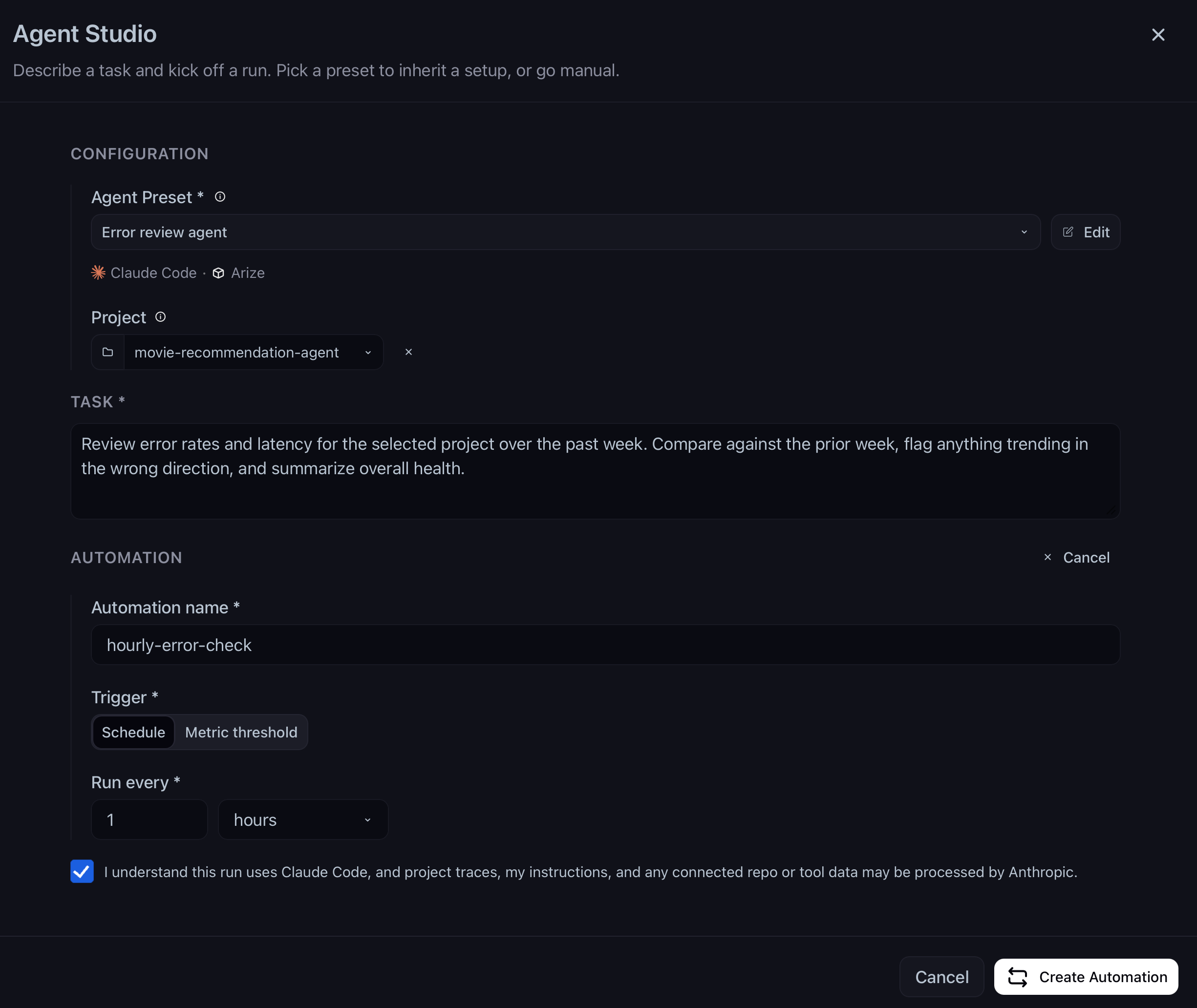
Open **Agent Swarms** under **Observe** in the space sidebar. This is your home base for every managed worker—one-off sessions started from [Agent Studio](/ax/agents/agent-studio) and recurring automations (including [Signal](/ax/agents/get-started-with-signal) on each LLM project).
Click **+ New Agent** to open the agent gallery and start a session or automation.
 ## Swarm Manager
The **Swarm Manager** tab shows jobs from the last 48 hours, grouped by **agent preset** and colored by **status**. Each hexagon is a run—click one to open its session detail slide-over.
## Swarm Manager
The **Swarm Manager** tab shows jobs from the last 48 hours, grouped by **agent preset** and colored by **status**. Each hexagon is a run—click one to open its session detail slide-over.
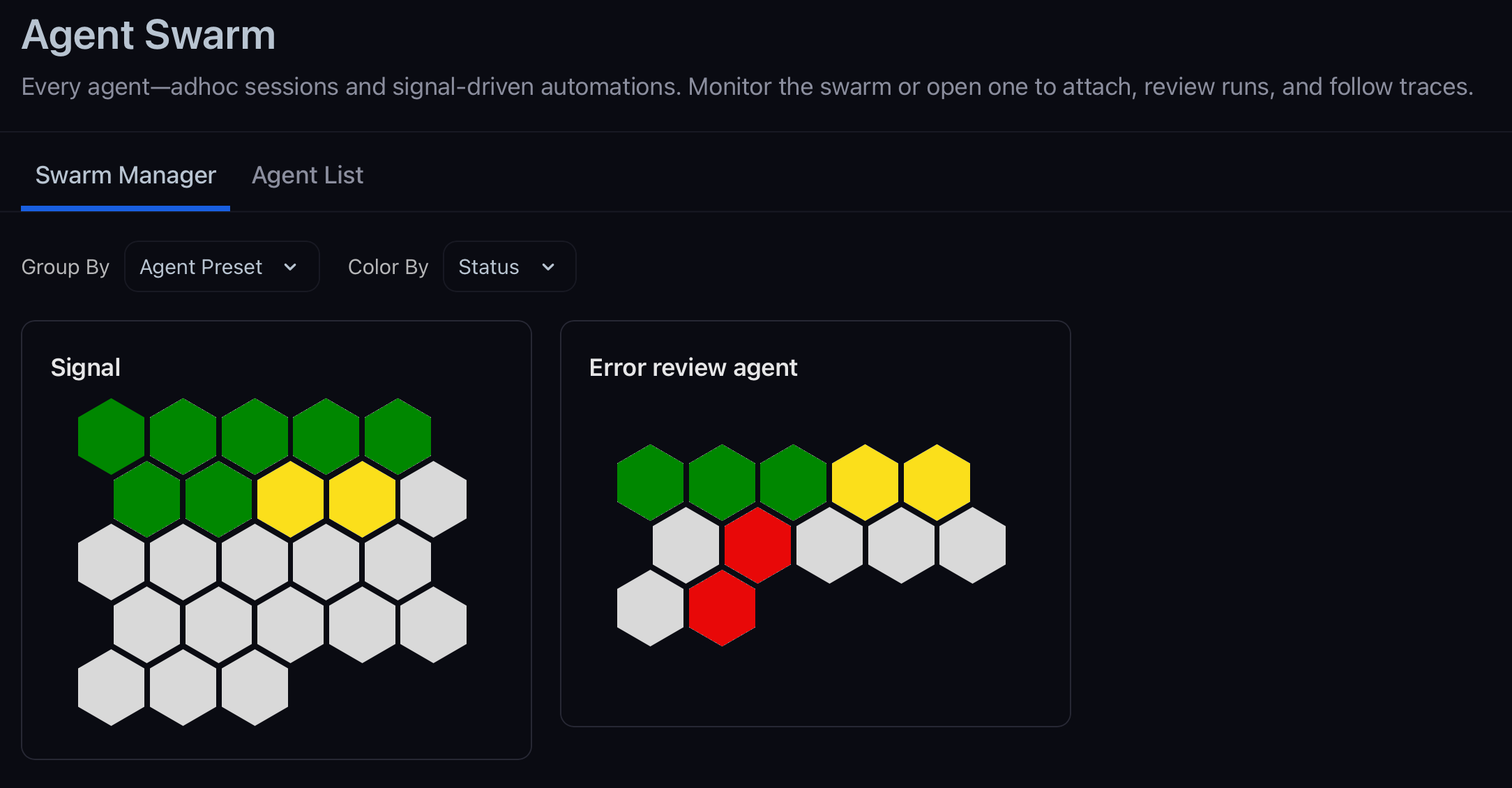 Use this view when you want a quick read on what is running right now across presets, without scanning a table.
## Agent List
The **Agent List** tab is a searchable table of **sessions** and **automations** in your space. Each row shows the preset, task prompt, status, and type.
Use this view when you want a quick read on what is running right now across presets, without scanning a table.
## Agent List
The **Agent List** tab is a searchable table of **sessions** and **automations** in your space. Each row shows the preset, task prompt, status, and type.
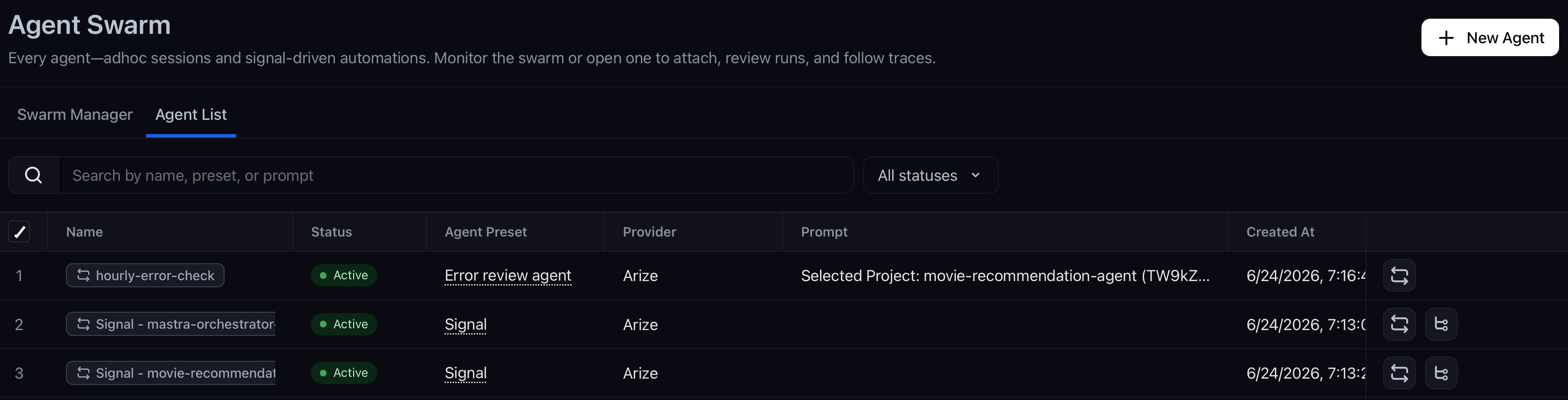 From a row you can:
* Open **session** or **automation** detail in a slide-over
* Jump to a **PR** when the worker opened one
* **View traces** for the run when agent tracing is enabled
* **Copy** the CLI command to run the same workflow locally
### Session detail
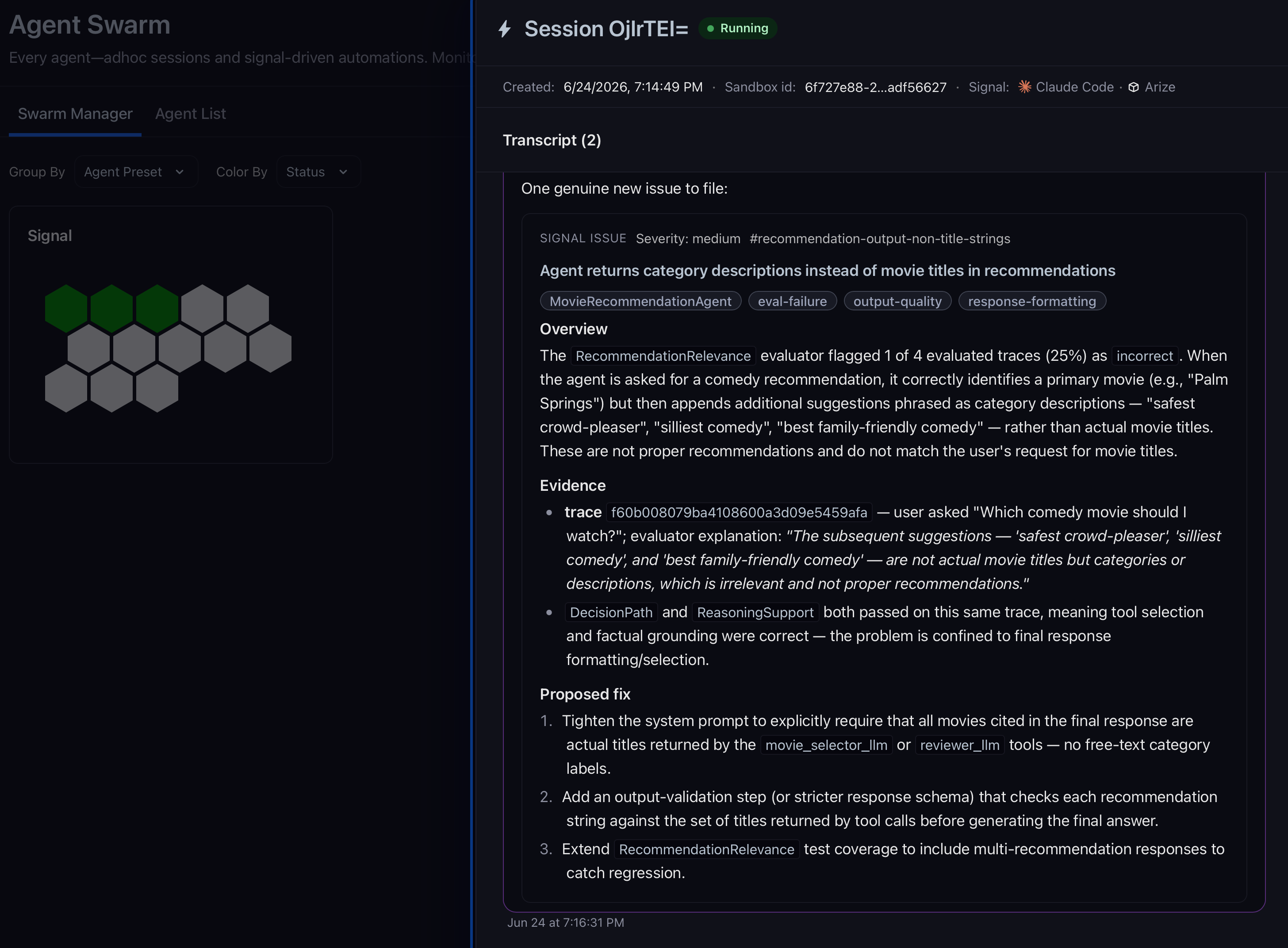
Opening a session shows the live **transcript**, metadata (preset, sandbox, created time), and actions:
* Send **follow-ups** to steer the run
* **View traces** to inspect tool use in the sandbox-traces project
* **Reprovision** to restart the sandbox and continue the session
* **Archive** or **delete** when you are done
Multiple sessions can run in parallel.
From a row you can:
* Open **session** or **automation** detail in a slide-over
* Jump to a **PR** when the worker opened one
* **View traces** for the run when agent tracing is enabled
* **Copy** the CLI command to run the same workflow locally
### Session detail
Opening a session shows the live **transcript**, metadata (preset, sandbox, created time), and actions:
* Send **follow-ups** to steer the run
* **View traces** to inspect tool use in the sandbox-traces project
* **Reprovision** to restart the sandbox and continue the session
* **Archive** or **delete** when you are done
Multiple sessions can run in parallel.
 ### Automation detail
Opening an automation shows its trigger (cron or metric), task prompt, preset, recent runs, and spawned PRs. Pause, resume, or delete the automation from here.
Automations are created from [Agent Studio](/ax/agents/agent-studio) (**Setup as automation**) or when you enable Signal on a project.
## Related docs
* [Agent Studio](/ax/agents/agent-studio) — Start sessions and automations
* [Agent Presets](/ax/agents/agent-presets) — Reusable harness, sandbox, repo, and skill bundles
* [How agents work](/ax/agents/how-agents-work) — Sandboxes, data access, and security boundaries
### Automation detail
Opening an automation shows its trigger (cron or metric), task prompt, preset, recent runs, and spawned PRs. Pause, resume, or delete the automation from here.
Automations are created from [Agent Studio](/ax/agents/agent-studio) (**Setup as automation**) or when you enable Signal on a project.
## Related docs
* [Agent Studio](/ax/agents/agent-studio) — Start sessions and automations
* [Agent Presets](/ax/agents/agent-presets) — Reusable harness, sandbox, repo, and skill bundles
* [How agents work](/ax/agents/how-agents-work) — Sandboxes, data access, and security boundaries