> ## Documentation Index
> Fetch the complete documentation index at: https://arize-ax.mintlify.site/docs/llms.txt
> Use this file to discover all available pages before exploring further.
# Get Started with Signal
> Enable Signal on an LLM project to surface ranked issues from production traces with investigation detail and trace links.
Signal is available in closed Enterprise beta. Contact your Arize account team for access.
**Signal** is a built-in worker that scans an LLM project's traces on a schedule, groups recurring failure patterns into **issues**, and writes an investigation for each one (overview, trace evidence, suggested fix).
Requires an LLM project with traces in Arize. See [Set up tracing](/ax/instrument/set-up-tracing) if needed.
No repo or extra skills are required to detect issues. To let Signal open fix PRs, use **Attach Repo** from the **Signal** tab menu (⋯ on the tab header). **Unattach Repo** in the same menu to revert to trace-only investigations.
## Enable Signal
Signal only reads traces from the selected project.
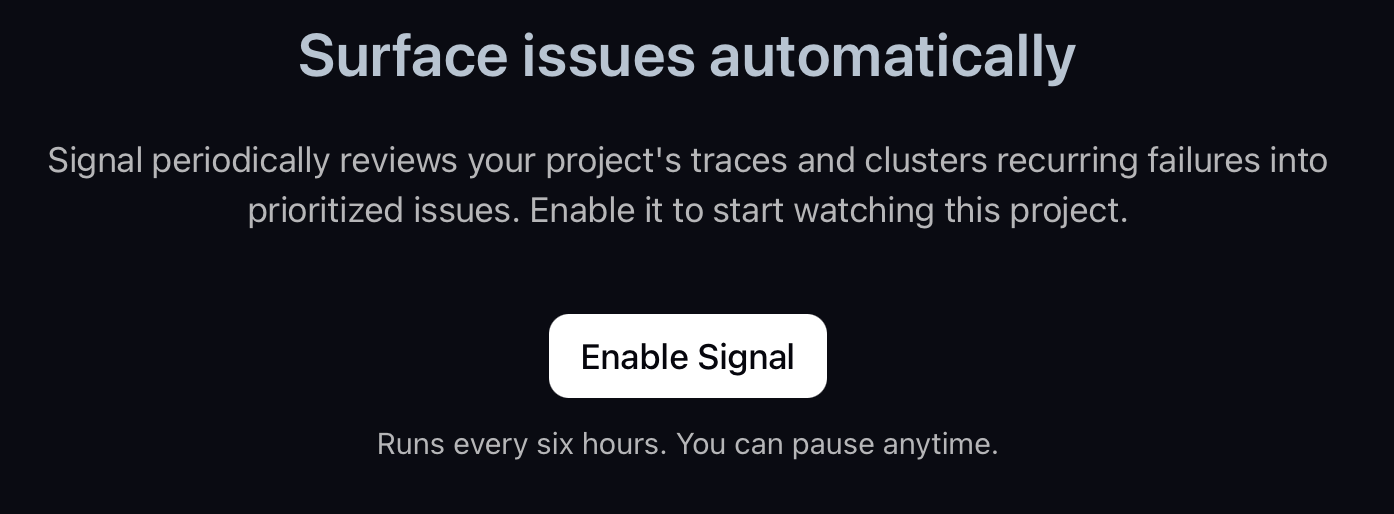
Select **Signal** in the project navigation.
Arize creates a default automation using the Signal preset (recurring schedule, for example every 10 minutes). The tab stays linked to this automation until you disable Signal or delete it.
 ## Read issues
The **Signal** tab shows issue volume over time, a breakdown by entity when tagged, and a ranked issue list. Select an issue to read its investigation:
* **Overview** — summary of the failure pattern
* **Evidence** — trace IDs and filters
* **Proposed fix** — suggested prompt, code, config, or eval change
Use **View matching traces** to open evidence in [Explore your traces](/ax/observe/tracing/view-and-manage-traces).
## Read issues
The **Signal** tab shows issue volume over time, a breakdown by entity when tagged, and a ranked issue list. Select an issue to read its investigation:
* **Overview** — summary of the failure pattern
* **Evidence** — trace IDs and filters
* **Proposed fix** — suggested prompt, code, config, or eval change
Use **View matching traces** to open evidence in [Explore your traces](/ax/observe/tracing/view-and-manage-traces).
 ## Attach a repo for fix PRs
When Signal has a repo attached, it can clone the repository and open pull requests for proposed fixes—not just write investigations.
On the **Signal** tab, open the **⋯** menu in the tab header.
Choose an existing **GitHub skill** or **Create new GitHub skill** (name + personal access token). See [Skills and permissions](/ax/agents/skills-and-permissions) for token scopes.
Provide the repo in `owner/repo` form. Click **Attach Repo**.
Arize creates or updates the Signal agent preset for this project automatically—you do not need to visit [Agent Presets](/ax/agents/agent-presets) first. To go back to trace-only mode, choose **Unattach Repo** from the same menu.
## Attach a repo for fix PRs
When Signal has a repo attached, it can clone the repository and open pull requests for proposed fixes—not just write investigations.
On the **Signal** tab, open the **⋯** menu in the tab header.
Choose an existing **GitHub skill** or **Create new GitHub skill** (name + personal access token). See [Skills and permissions](/ax/agents/skills-and-permissions) for token scopes.
Provide the repo in `owner/repo` form. Click **Attach Repo**.
Arize creates or updates the Signal agent preset for this project automatically—you do not need to visit [Agent Presets](/ax/agents/agent-presets) first. To go back to trace-only mode, choose **Unattach Repo** from the same menu.